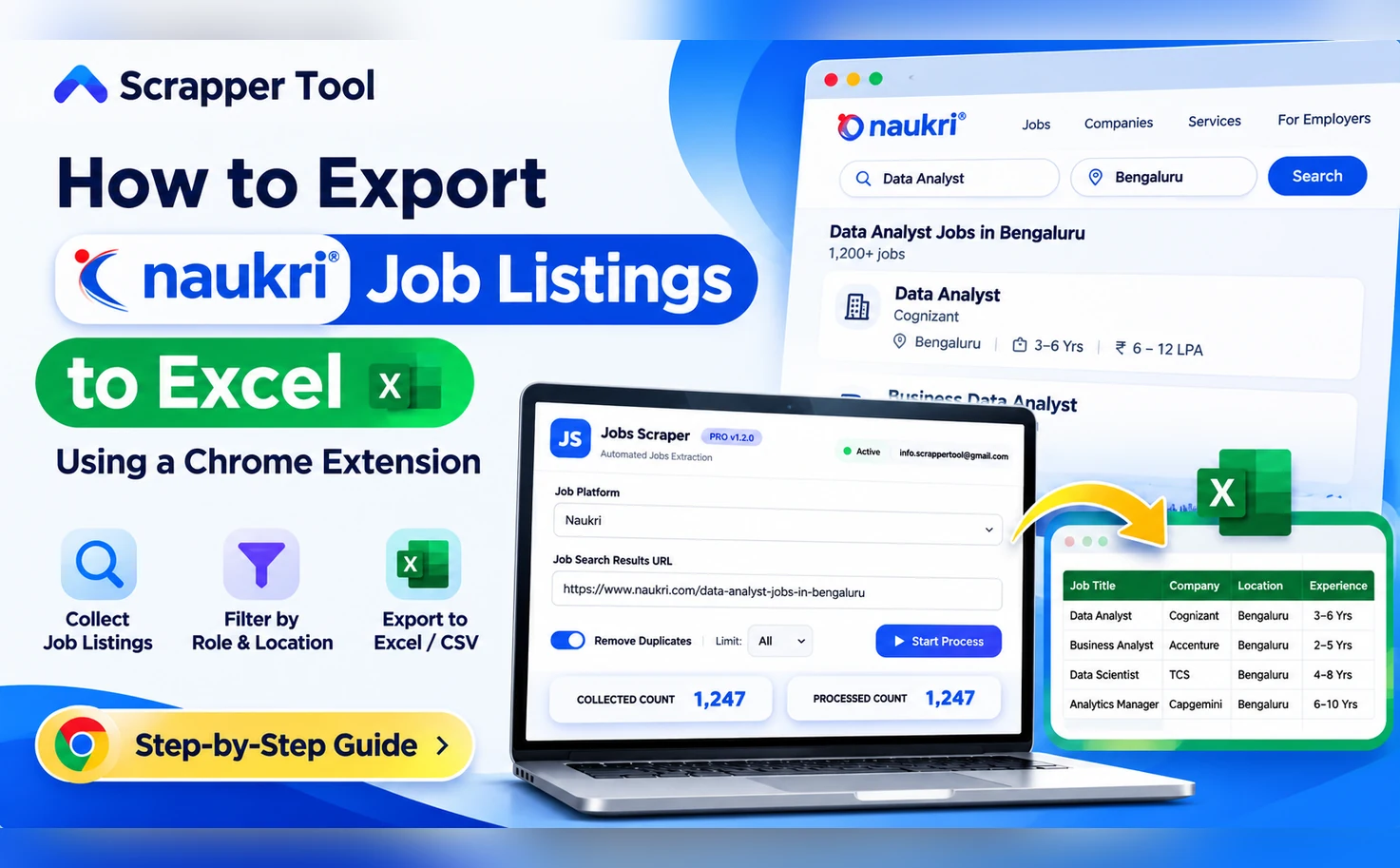

Finding hiring opportunities across different companies is useful for recruitment agencies, HR researchers, and business development teams. But if you are tracking dozens of Naukri job listings, manually copying job titles, employer names, locations, and experience requirements into a spreadsheet can become repetitive.
A Naukri Job Scraper can make that workflow more organized. Instead of opening every listing and typing its details into Excel, you can collect job information available on Naukri search results and export it into a structured CSV or Excel file for review.
In this step-by-step guide, you’ll learn how to export Naukri job listings to Excel using the Scrapper Tool Chrome extension, what fields to expect, how to clean the exported file, and how to turn raw postings into a useful hiring-market research sheet.
Quick answer: To export Naukri jobs to Excel, install the Jobs Scraper Chrome extension from Scrapper Tool, search for jobs on Naukri, copy the search-results URL, select Naukri in the extension, start the collection process, review the extracted records, and download the available CSV or Excel output. Open the file in Microsoft Excel and verify it before using it for research.
What Is a Naukri Job Scraper?
A Naukri Job Scraper is a data collection tool that organizes information displayed in Naukri job listings into spreadsheet-friendly rows and columns. A row normally represents a job posting, while columns contain fields such as job title, company, location, experience, skills, and a link back to the original listing.
Scrapper Tool’s Naukri Jobs Scraper is a Chrome extension workflow for collecting publicly visible job-listing information. It supports Naukri search-results URLs and exporting collected data in CSV or Excel format. The amount of data and the fields returned depend on what is actually available on the source pages.
This is different from downloading candidate resumes or accessing a private recruitment database. The goal here is job-posting research, not collecting private applicant profiles.
Why Export Naukri Job Listings to Excel?
An Excel sheet is more useful than a collection of browser tabs when you want to answer business questions. For example, you may want to know which cities have more postings for a role, which companies are advertising similar positions, or which skills appear repeatedly in job descriptions.
Exporting listings can help you:
- Compare job roles and locations in one worksheet.
- Group postings by employer, city, or experience requirement.
- Identify frequently mentioned skills for a particular type of role.
- Review job descriptions without repeatedly searching for the same links.
- Maintain a research history with the date each listing was collected.
- Share a structured research sheet with a recruitment or analytics team.
The exported sheet is a research starting point. It does not guarantee that a vacancy is still open or that an employer wants to receive unsolicited sales messages.
What You Need Before Starting
You will need Google Chrome, access to the publicly visible Naukri job-search pages you are authorized to use, the Jobs Scraper extension, and a spreadsheet application such as Microsoft Excel or Google Sheets. Start with a small search so you can verify the output format before collecting a larger set of results.
Tip: Decide on one research question first. For example, “Which employers are listing Data Analyst roles in Bengaluru?” A focused query produces a more manageable spreadsheet than a broad search for every job in India.
Step-by-Step: How to Export Naukri Job Listings to Excel
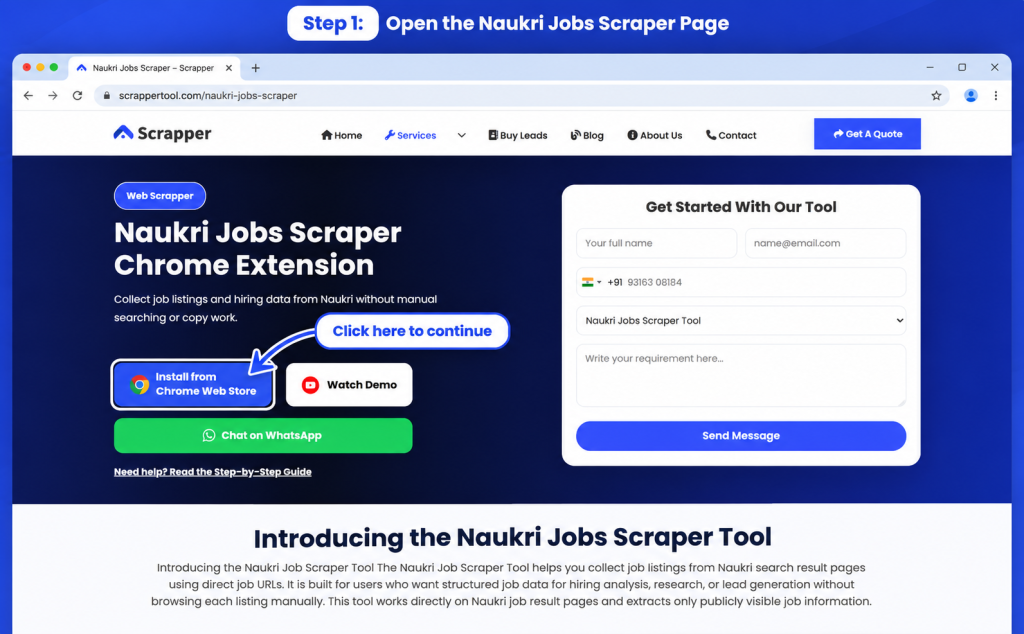
Step 1: Open the Scrapper Tool Naukri Jobs Scraper Page
Start with the Naukri Jobs Scraper service page. Review the supported fields and locate the Install from Chrome Web Store button. It leads to the Jobs Scraper – Hiring & Recruitment Lead Extractor extension.
Use the official store listing rather than downloading unknown extension files from third-party websites. Review its permissions before installing.
Step 2: Install and Pin the Chrome Extension
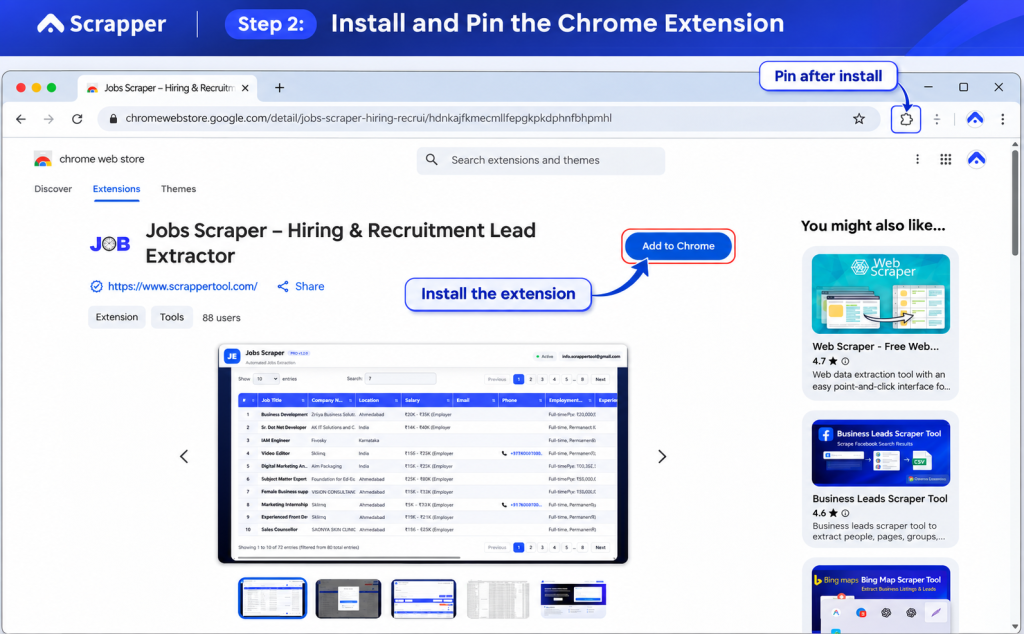
Open the Jobs Scraper Chrome Web Store listing. Follow Chrome’s installation prompts. Then click the puzzle-piece Extensions icon in the browser toolbar and pin Jobs Scraper for easy access.
If your extension requests trial activation or account information, follow the instructions shown in your version. You do not need to write Python code or configure an API for the standard browser workflow.
Step 3: Search for Jobs on Naukri
Open Naukri and enter a job role or skill in its search bar. Apply relevant location and experience filters where available. For a practical example, search for Data Analyst jobs in Bengaluru and narrow the results to the experience range you want to study.
Before proceeding, check that you are viewing a list of job postings rather than a single company profile or an unrelated search page. This matters because the extension is designed to read supported job-results URLs.
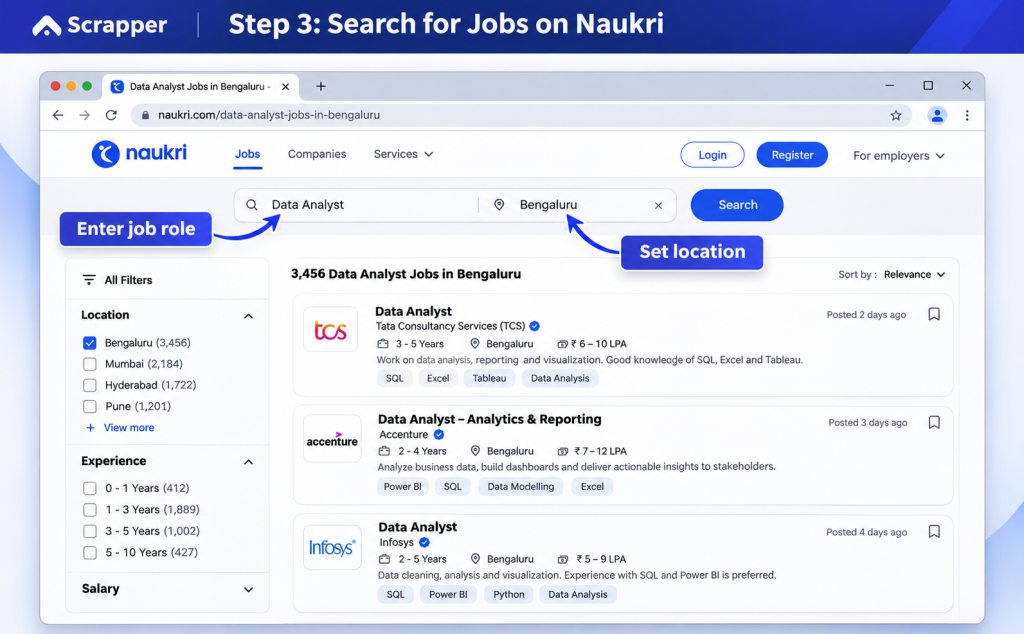
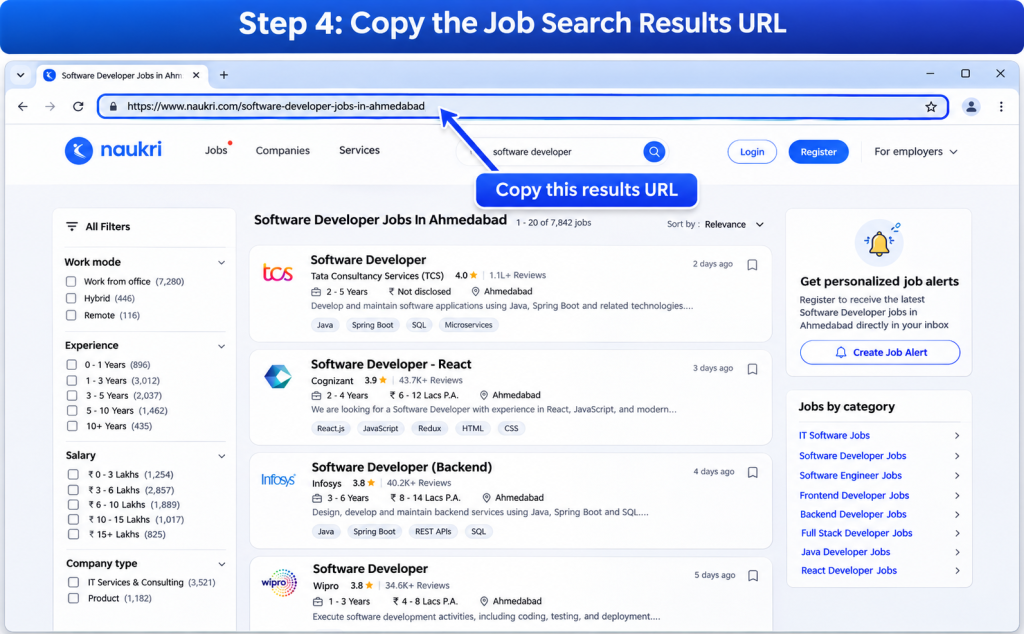
Step 4: Copy the Job Search-Results URL
Once the results have loaded, copy the full URL from Chrome’s address bar. Keep the filters you selected in place. A search URL is preferable to pasting a random page address because it represents the listings you intend to collect.
You can save the URL in a research note with the search date, query, and target location. That small habit makes it easier to understand how you produced the spreadsheet later.
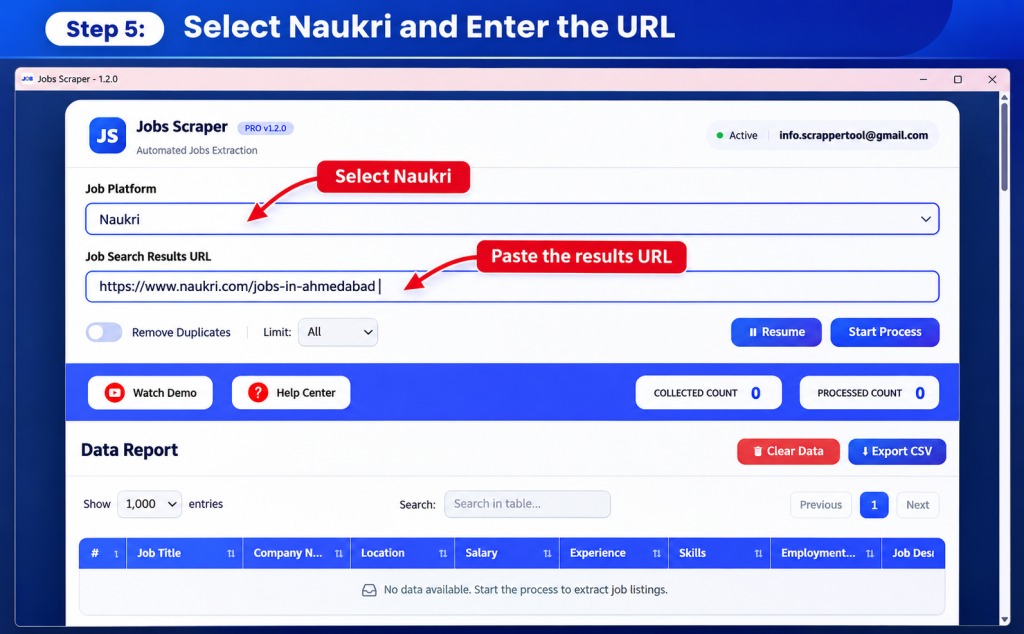
Step 5: Select Naukri and Enter the URL in Jobs Scraper
Open the Scrapper Tool Jobs Scraper extension from the Chrome toolbar. In the platform selector, choose Naukri if that option is presented, and paste the job-results URL into the appropriate input field.
Check for missing characters or extra spaces. Avoid combining URLs from multiple job portals in the same input unless your extension version specifically supports that workflow.
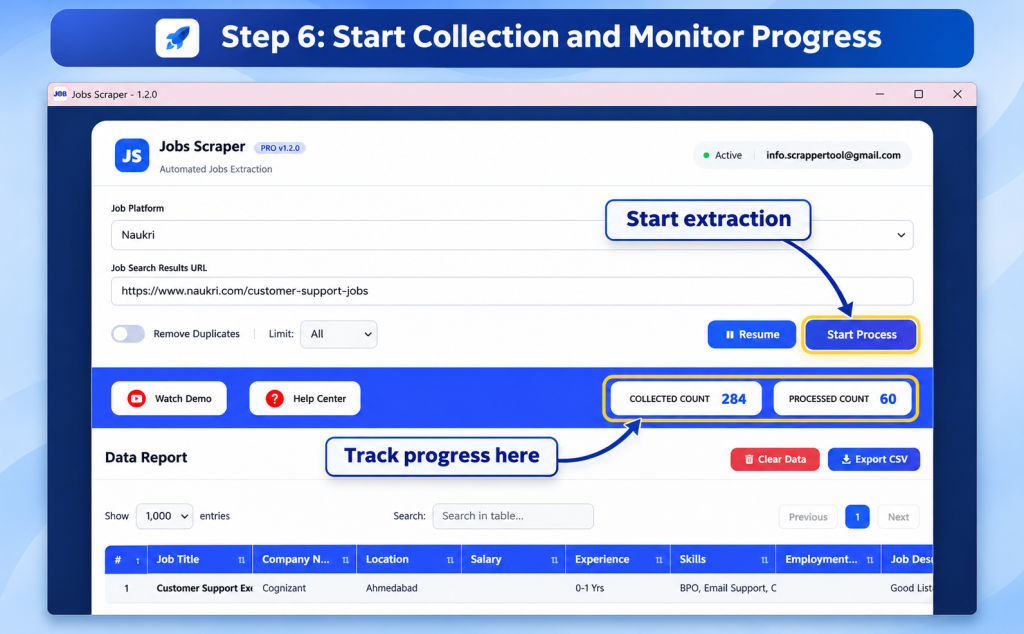
Step 6: Start Collection and Monitor Progress
Use the extension’s Start Process or corresponding start control to begin collecting listings. The Naukri service page describes live progress tracking, so look for the processed and collected job counts as the run proceeds.
For the first test, collect a small set and check whether the job titles, locations, and URLs match what you see on Naukri. Actual extraction speed and coverage can vary with the page layout, network conditions, access permissions, and extension version. Do not bypass login restrictions, rate limits, or other platform controls.
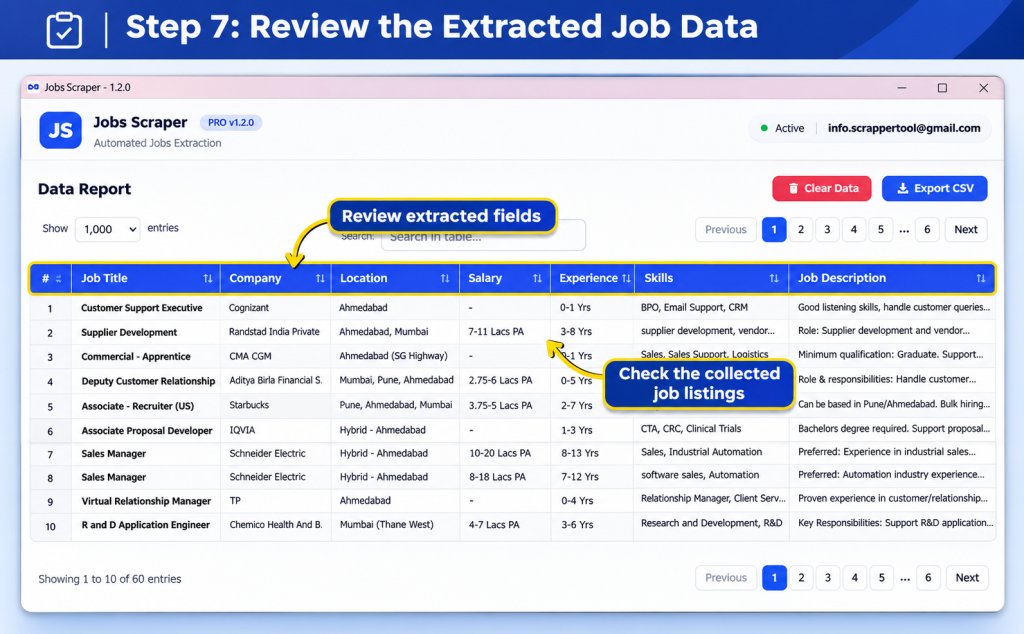
Step 7: Review the Extracted Job Data
Before downloading, inspect the rows shown in the extension. Look for sensible job titles, readable company names, and valid listing links. If a salary field is empty, it may simply mean the employer did not display compensation on that posting.
Some job pages provide detailed descriptions and skills, while others expose fewer fields. Do not treat a blank cell as an extraction error without checking the original listing.
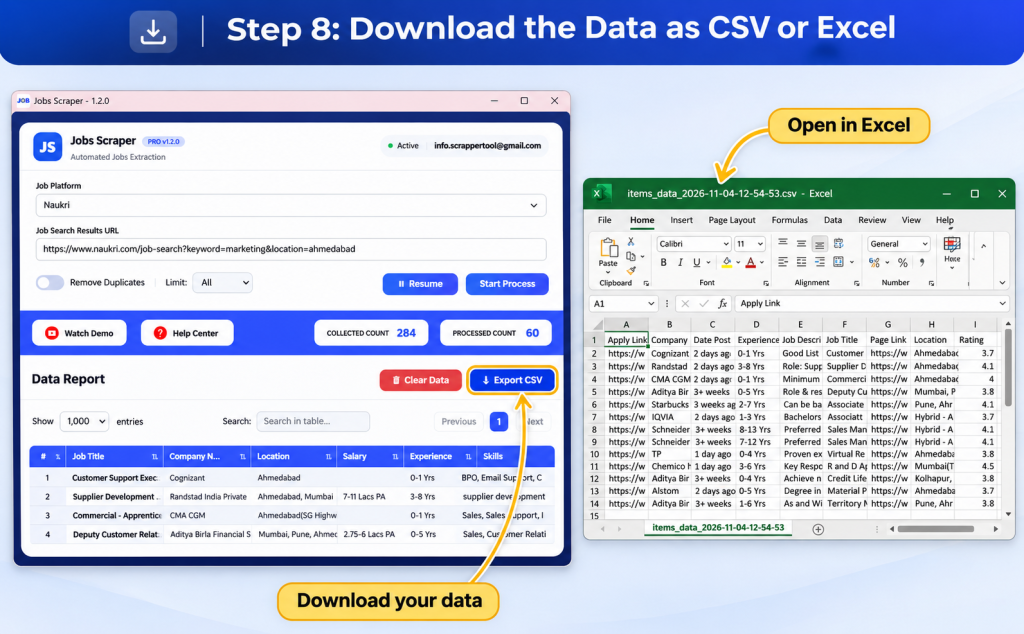
Step 8: Download the Data as CSV or Excel
When the run is complete, use the available export/download option. The product supports CSV and Excel output, although the exact button wording may vary. If the extension downloads a CSV, you can open it in Microsoft Excel and save it as an .xlsx workbook.
To convert a CSV in Excel, open the file, review the columns and character encoding, then select File → Save As → Excel Workbook (.xlsx). Keep the original CSV as a backup before editing the workbook.
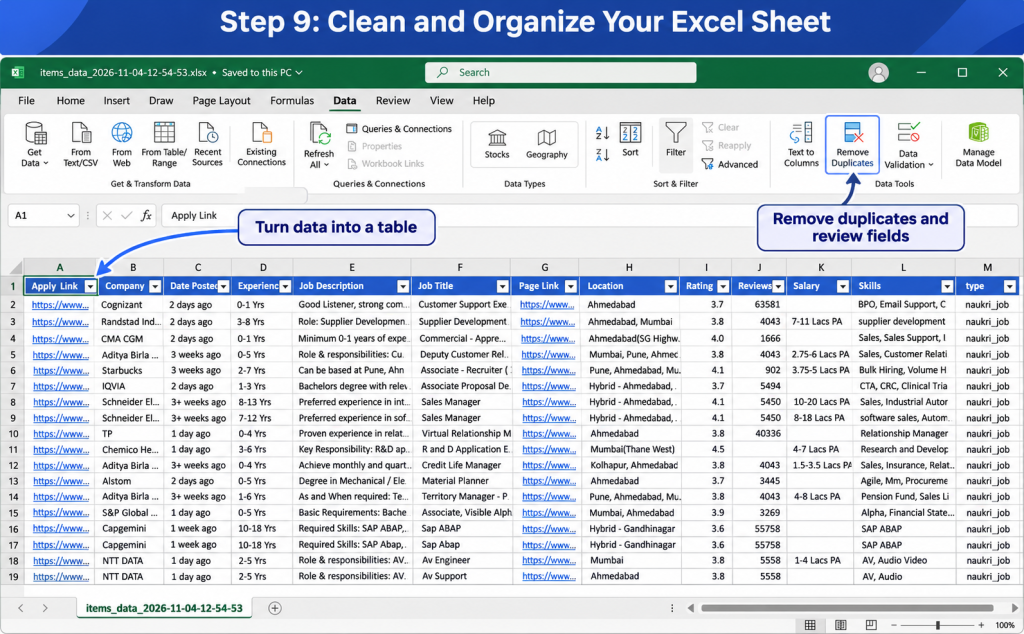
Step 9: Clean and Organize Your Excel Sheet
A usable research sheet should be easy to filter, audit, and revisit. Start by converting your data range into an Excel table with Ctrl + T. Then apply these checks:
- Check duplicates. Use the job URL as the main identifier where available. In Excel, select the relevant column and choose Data → Remove Duplicates. Keep a backup before removing rows.
- Review missing information. Leave unavailable salary or experience values blank rather than inventing figures.
- Standardize locations. If Bengaluru and Bangalore appear as different text values, create a separate normalized-city column while preserving the original entry.
- Confirm links. Open a sample of job URLs and check that they lead to the expected listings.
- Record collection details. Add a Date Collected column and keep the original search URL in a separate research log.
The extension advertises duplicate control, but checking your final workbook is still useful when you combine exports from several searches or dates.
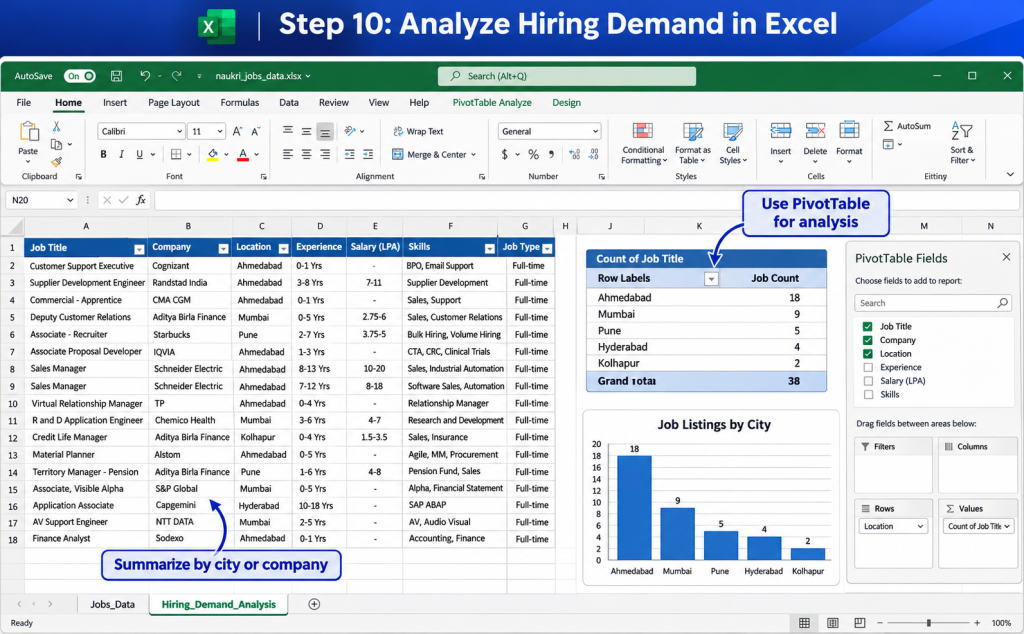
Step 10: Analyze Hiring Demand in Excel
Once your file is cleaned, you can start answering hiring-market questions. Insert a PivotTable to group listings by Location and count the number of exported postings, or group them by Company Name to see which employers appear repeatedly in your selected dataset.
For a simple study, run the same search separately for Bengaluru, Pune, and Hyderabad. Export each set, add a Search City column, and combine them into one workbook. You can then compare the counts of collected listings by city or role. These counts describe your exported sample, not the total number of vacancies in the market.
A second worksheet can track the most common skills mentioned in the available job descriptions. Check for different spellings such as “MS Excel” and “Microsoft Excel” before grouping them.
What Data Can a Naukri Job Scraper Export?
The available fields depend on the Naukri listing and the extension’s current extraction coverage. Commonly supported data includes:
- Job title: The advertised position or designation.
- Company name: The employer shown on the listing.
- Location: City, region, or work-location information.
- Experience: Required experience range if provided.
- Salary: Compensation details when publicly shown.
- Skills or keywords: Terms mentioned in the posting.
- Job description: Publicly visible duties and requirements where available.
- Job URL or apply link: A link back to the original listing.
Contact information should not be expected from every job listing. The extension is intended for publicly visible job information and does not provide permission to access private applicant or employer data.
Practical Example: Build a Data Analyst Hiring Research Sheet
Suppose a staffing consultant wants to understand hiring patterns for Data Analyst positions in three Indian cities. Instead of copying each result manually, the consultant collects available job postings from separate filtered Naukri searches and exports them for review.
In Excel, the consultant keeps the job title, company, location, experience requirement, skills, original URL, and collection date. Duplicate URLs are removed, company spellings are checked, and a PivotTable summarizes the exported records by city.
The analysis could help answer questions such as:
- Which companies appear more than once in the exported sample?
- Which cities show more matching listings in the searches performed?
- What experience levels appear frequently?
- Which skills are repeatedly requested?
- Which listings need manual verification before being included in a report?
This example is illustrative, not a claim that a particular employer or city currently has a given number of vacancies. The spreadsheet becomes more reliable when the researcher documents search filters, dates, and limitations.
Who Can Use This Naukri-to-Excel Workflow?
Recruitment Agencies and Staffing Consultants
Organize job openings by role, employer, location, and experience requirement for internal hiring-market analysis. Review source links before using the data in a client deliverable.
HR and Talent Intelligence Teams
Explore skills and experience levels appearing in public job advertisements. This can complement other recruiting research but should not be treated as a complete picture of the labor market.
Market Researchers and Data Analysts
Create consistent datasets from selected job searches and compare trends across locations or collection dates. Keep a record of filters and methodology so results can be reproduced responsibly.
Business Development Teams
Research which industries or companies are publicly advertising openings. Any outreach should be relevant, verified, and compliant with applicable communication rules; a job advertisement is not permission to send unsolicited marketing messages.
Manual Copying vs Exporting Job Data
Manual collection can work when you need only one or two postings. But as a research list grows, a browser-based export workflow may reduce repeated copying and help keep columns consistent.
The scraper helps collect the available rows; Excel still matters for validation and analysis. Neither approach eliminates the need to check whether the listing is current and whether fields were displayed accurately on the source page.
Common Problems When Exporting Naukri Listings
The Extension Returns No Job Records
Make sure the pasted link is a supported Naukri job-results URL, not a company page or unrelated webpage. Reload the results and try a small test. Verify that the content is publicly accessible and that your use follows platform rules.
Salary or Skills Are Missing
Not all job posts display the same information. Check the original listing before assuming the extension missed a field. Keep missing information marked as unavailable rather than estimating it.
The CSV Opens With Incorrect Characters or Columns
Import the CSV through Excel’s Data → From Text/CSV feature and confirm the delimiter and UTF-8 encoding where appropriate. Review the preview before loading the data.
Excel Shows Duplicate Jobs
Multiple searches may include the same listing. Compare job URLs first, then investigate apparent duplicates with different URLs before removing them.
Job Links No Longer Open
Job postings can expire or be removed. Record the extraction date, check source links when preparing reports, and avoid presenting older results as currently active vacancies.
Best Practices for Reliable Job-Market Research
Use focused search queries, keep the original Naukri URL, start with small tests, review output fields, and separate raw exports from cleaned worksheets. Recheck a sample of listings before sharing findings, and describe your dataset as a sample rather than a complete market census.
Collect only information you are permitted to access. Respect Naukri’s terms of service, applicable privacy and data-use requirements, and any limits on automated access. Do not attempt to bypass logins, access restrictions, or technical safeguards.
Frequently Asked Questions
Can I export Naukri job listings to Excel without coding?
Yes. Scrapper Tool’s Jobs Scraper Chrome extension supports a browser-based workflow for collecting publicly visible Naukri job information and exporting structured data without writing code.
Do I need to copy every Naukri job listing manually?
No. The tool supports job-search results URL input and collecting multiple listings in a run, subject to page availability and supported functionality.
Can I download Naukri job data as CSV?
Yes. Scrapper Tool lists CSV and Excel among the supported export formats. A CSV can also be opened and saved as an Excel workbook.
Will every job include salary and experience details?
No. Fields depend on what each listing displays. Keep missing values blank and verify important records at their source.
Does the scraper provide candidate resumes or private contact details?
No. This guide is about publicly visible job-posting information, not downloading private candidate profiles, bypassing account permissions, or accessing restricted contact records.
Can I remove duplicate Naukri jobs in Excel?
Yes. Use the job URL as a primary identifier where available, then review duplicates before using Excel’s Remove Duplicates feature.
Can I use the exported data for recruitment or market research?
You can use legitimately collected, relevant public information for permitted internal research and hiring analysis, subject to Naukri’s terms and applicable laws. Verify the data and do not assume the export authorizes unsolicited outreach.
Is Scrapper Tool affiliated with Naukri?
No. Scrapper Tool provides an independent Chrome extension. References to Naukri identify the supported job platform and do not imply endorsement or affiliation.
Start Organizing Naukri Job Data in Excel
A useful hiring research project begins with a clear search and ends with a spreadsheet you can understand and verify. By using Scrapper Tool to collect accessible Naukri job listings, then cleaning and analyzing the export in Excel, you can build a more consistent view of the positions and employers in your selected sample.
Ready to try the workflow? Visit the Naukri Jobs Scraper service page to review the tool and access the official Chrome extension. For a broader introduction covering several job websites, see the Jobs Scraper Tool Guide.