
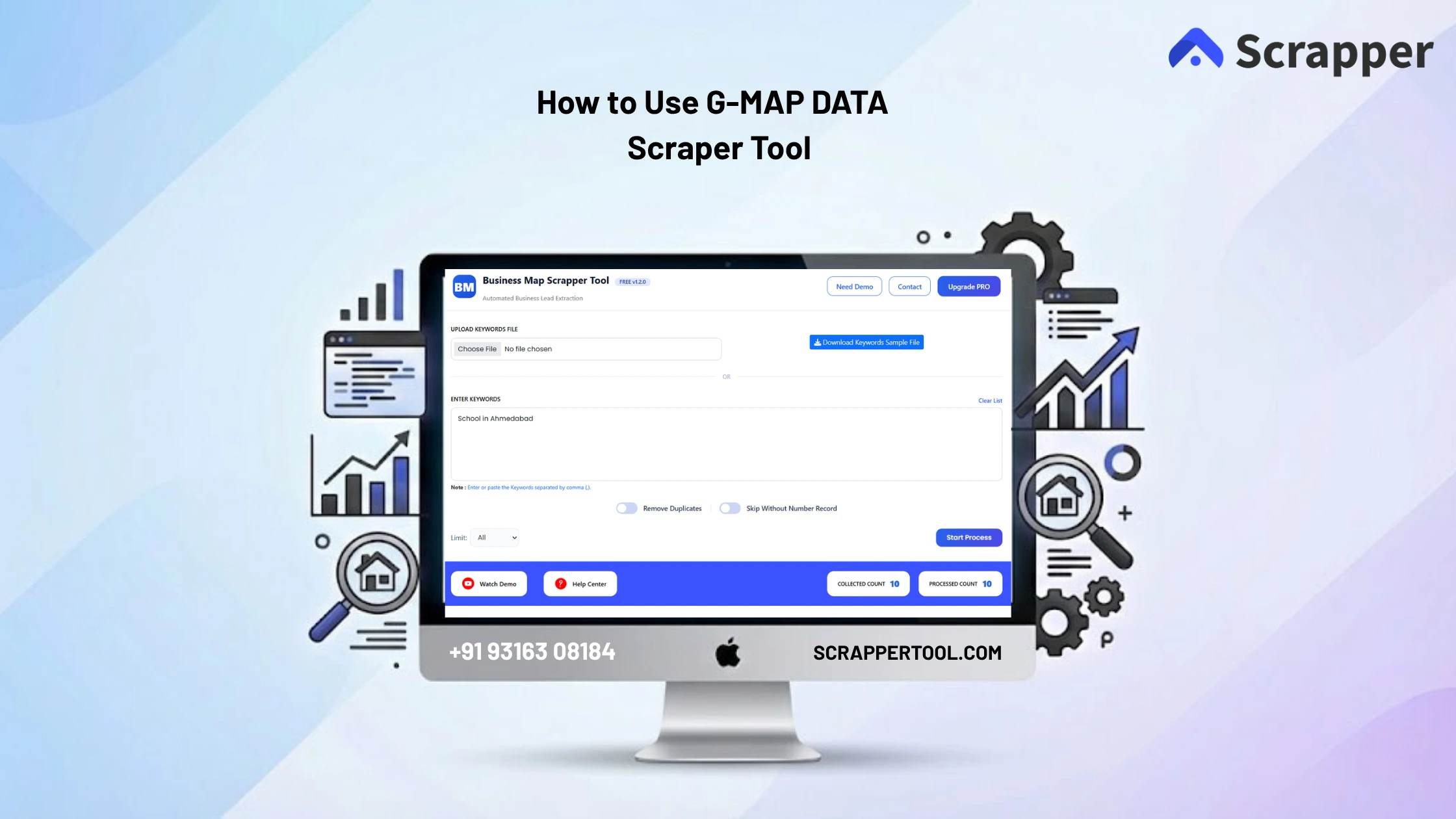

Extracting business data from Google Maps manually can take a lot of time. Users usually search for businesses, open listings one by one, copy names, phone numbers, addresses, and other details, then paste everything into spreadsheets.
This process is slow, repetitive, and often leads to incomplete or inaccurate data.
For marketers, sales teams, and lead generation agencies, manual data collection makes it difficult to scale outreach and build reliable lead databases.
The Google Map Data Scraper Tool by Scrapper Tool solves this problem by allowing you to extract business data in bulk using a simple setup process, including a ZIP-based scraper system for faster and more flexible extraction.
Step By Step Guide on G – Map Scrapper Tool
Download the G – Map Scraper Tool
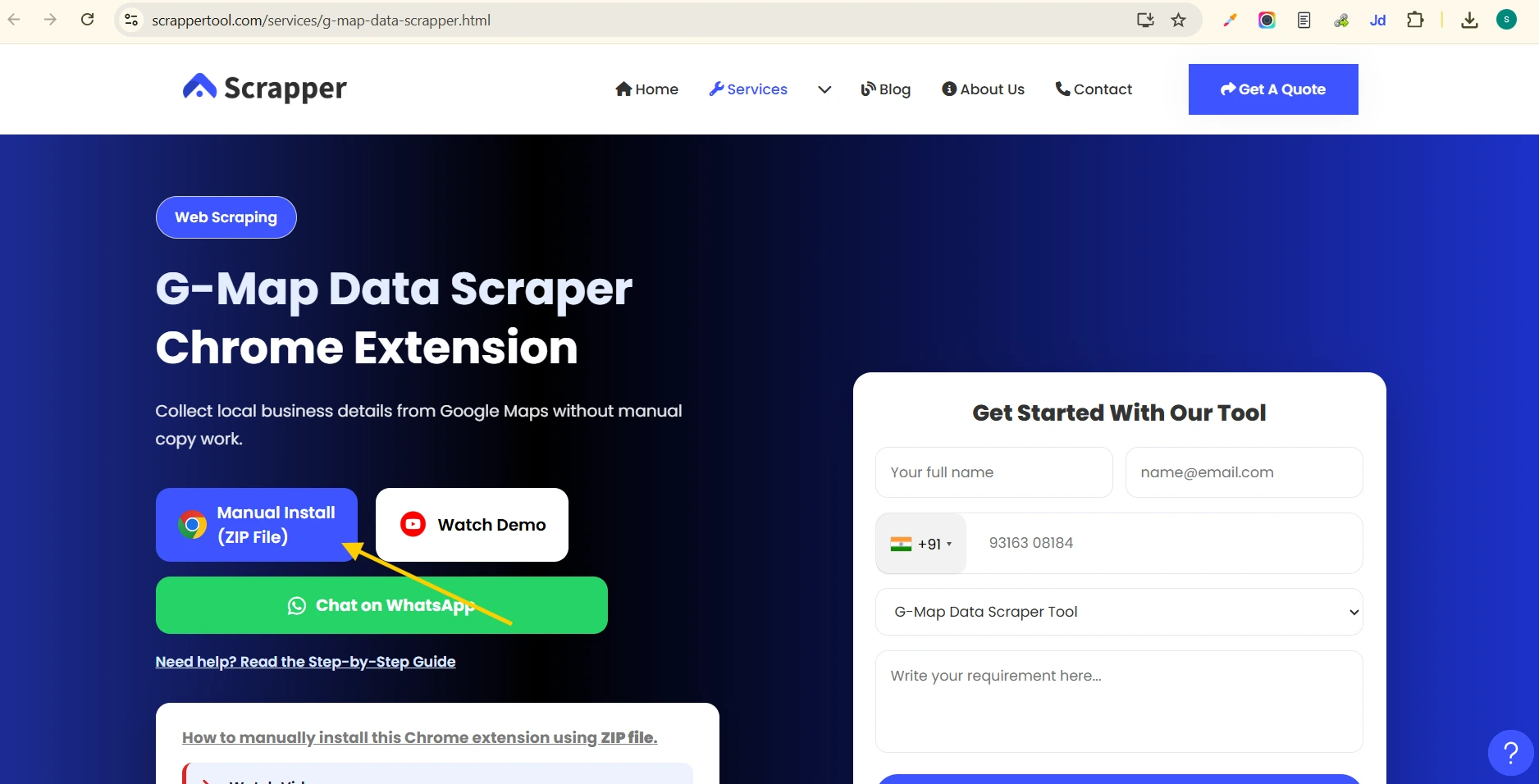
- first go to this page “G map Data Scraper Service” and click on “Manual Install (ZIP Fille)” Button.
- After clicking on the button zip file for the G map data scraper is download.
- After download unzip downloaded file.
Add G-Map data Scraper into Chrome
- Click on browser action icon and then click on manage extensions.
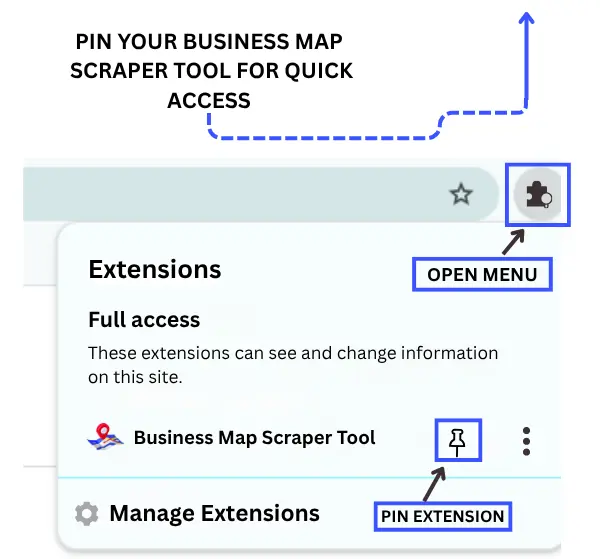
- After click on manage extensions then you can see below screen.
- On the right side you can click on “Developer Mode”.
- Click on “Load unpacked” button and upload unzip download file.

Start Free Version on G-Map Scraper Tool
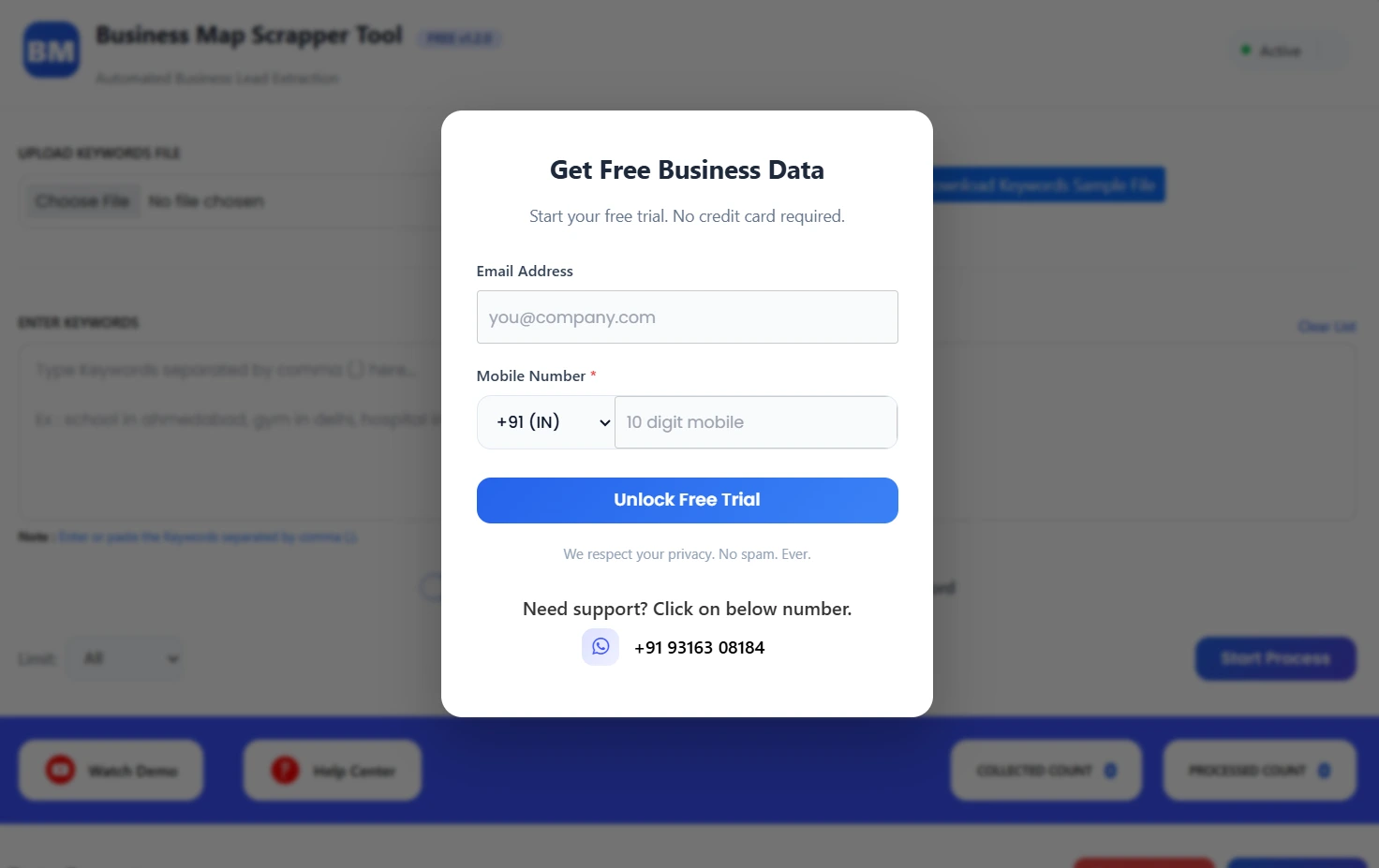
- Once the extension is pinned, click on the G-Map Scraper Tool in your Chrome browser. This will open a popup where you can complete the form to access the free trial.
Read Also:- How to Use Shopping Results Scraper Tool: Step by Step Guide
- After clicking on Unlock Free Trial button your free trial for the gmap data scraper started.
Start Free Version on G-Map Scraper Tool
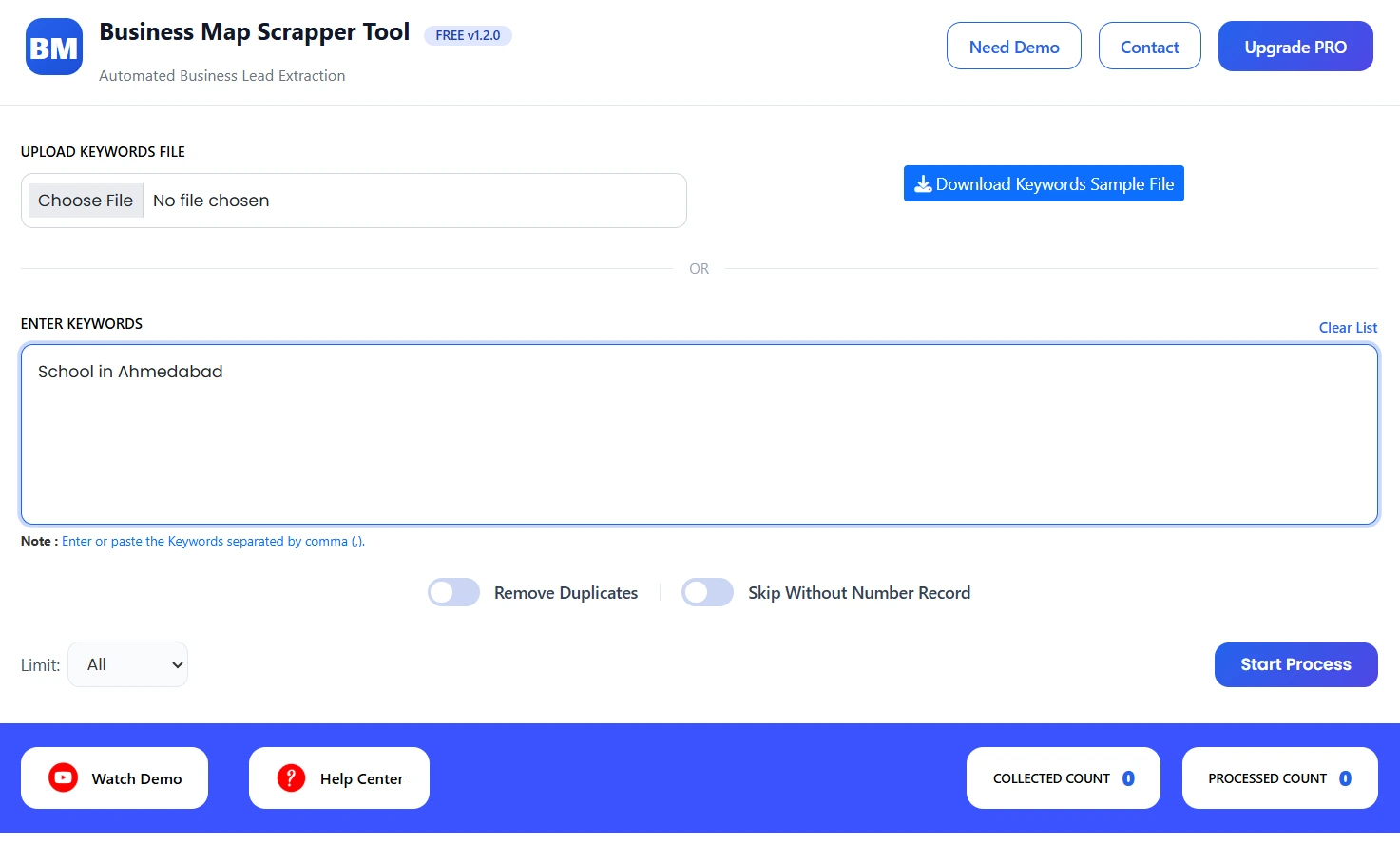
- You can upload a keywords file using the “Upload Keywords File” option.
- OR you can manually enter keywords in the “Enter Keywords” field (separated by commas).
- Use the “Limit” dropdown to select how many records you want to scrape (e.g., All or set a limit).
- Enable “Skip Without Number Record” if you want to ignore entries without contact numbers.
- After adding all inputs, click on the “Start Process” button to begin scraping.
View Extracted Data
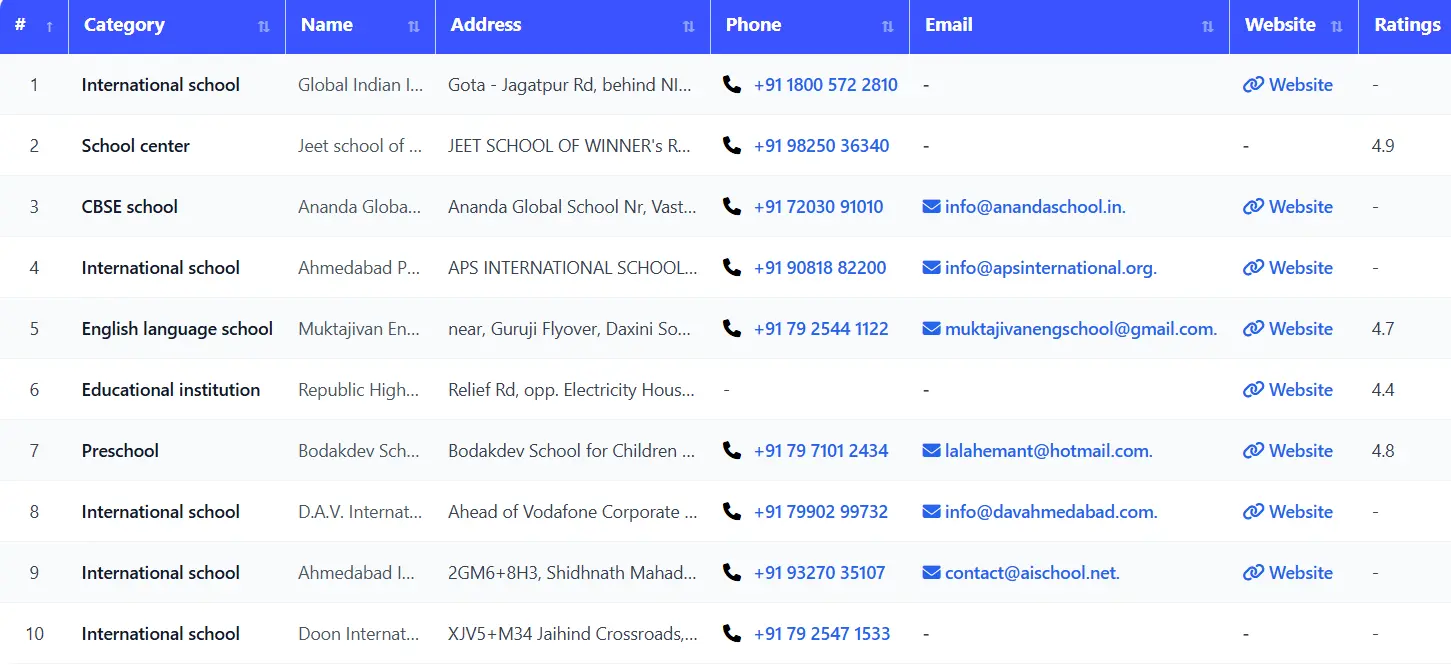
Once the process starts, you will see live data extraction.
After completion, data will appear in a table format.
Extracted data includes:
- Business Name
- Phone Number
- Address
- Ratings
- Website (if available)
- Category
What Is Google Map Data Scraper Tool?
The Google Map Data Scraper Tool is a lead generation tool that allows users to extract business listings and contact details directly from Google Maps.
Unlike browser-only tools, this scraper works using a downloadable ZIP setup, making it more flexible and capable of handling larger data extraction tasks.
Who Should Use This Tool?
This tool is ideal for:
- Lead generation agencies
- Sales teams
- Digital marketers
- Local business researchers
- Real estate professionals
- Freelancers
What Data Can You Extract from Google Maps?
Using this tool, you can extract:
- Business names
- Phone numbers
- Addresses
- Ratings & reviews
- Website URLs
- Location details
All data is structured and export-ready.
Use Cases
Lead Generation
Build local business lead databases quickly.
Sales Outreach
Reach businesses directly using phone numbers.
Local Market Research
Analyze business competition in specific areas.
Marketing Campaigns
Run targeted campaigns using location-based data.
Benefits of Using Google Map Data Scraper Tool
- No manual copy-paste
- Bulk data extraction
- Saves time and effort
- Beginner-friendly setup
- Works with large datasets
- Clean CSV export
Important Notes (VERY IMPORTANT SECTION 🔥)
- Always extract data at a moderate speed
- Avoid scraping too many results at once
- Use delays to prevent blocking
- Ensure proper ZIP setup before running
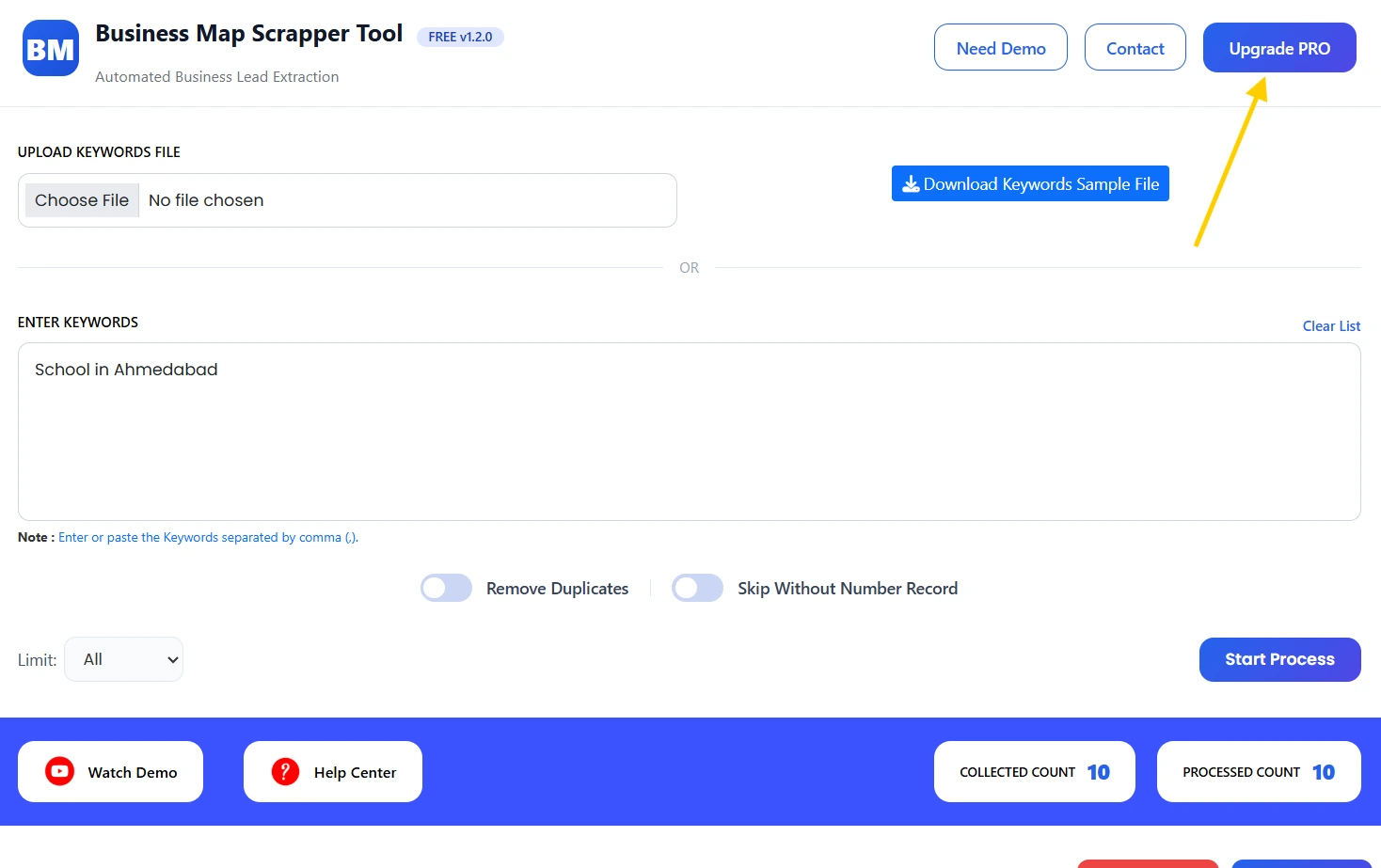
Upgrade to Google Map Data Scraper Pro
For higher limits and advanced scraping features, you can upgrade to the Pro version.
The Pro plan is ideal for professionals and agencies handling large-scale data extraction.
Watch the Complete Video Guide
We also provide a step-by-step video tutorial explaining how to use the Google Map Data Scraper Tool.
The video covers:
- Downloading ZIP file
- Running the scraper
- Extracting business data
- Exporting CSV files
▶ Watch the full video tutorial on YouTube
https://youtu.be/AgoSAEirIw4
