

Building a useful US business lead list starts with two decisions: which type of business you want to research and which cities you want to cover. If you search for every business in every location, you may end up with a large spreadsheet that is difficult to verify or use. A focused Yellow Pages search, followed by careful CSV cleaning, gives you a more practical starting point.
In this guide, you’ll learn how to build a targeted US local-business research list using a Yellow Pages USA Scraper, organize the results by city and business category, and prepare the records for Excel or an approved CRM workflow. We’ll use Scrapper Tool’s browser-based extension as the example, with extra attention to duplicate listings, missing fields, US ZIP codes, and responsible data use.
Quick answer: Choose a business category and US city, open the appropriate public Yellow Pages listings, install the Yellow Pages United States Scraper from Scrapper Tool, configure the relevant search or listing URLs, collect permitted public listing details, export a CSV, and verify and organize the file before using it for research or outreach.
What Is a Yellow Pages USA Scraper?
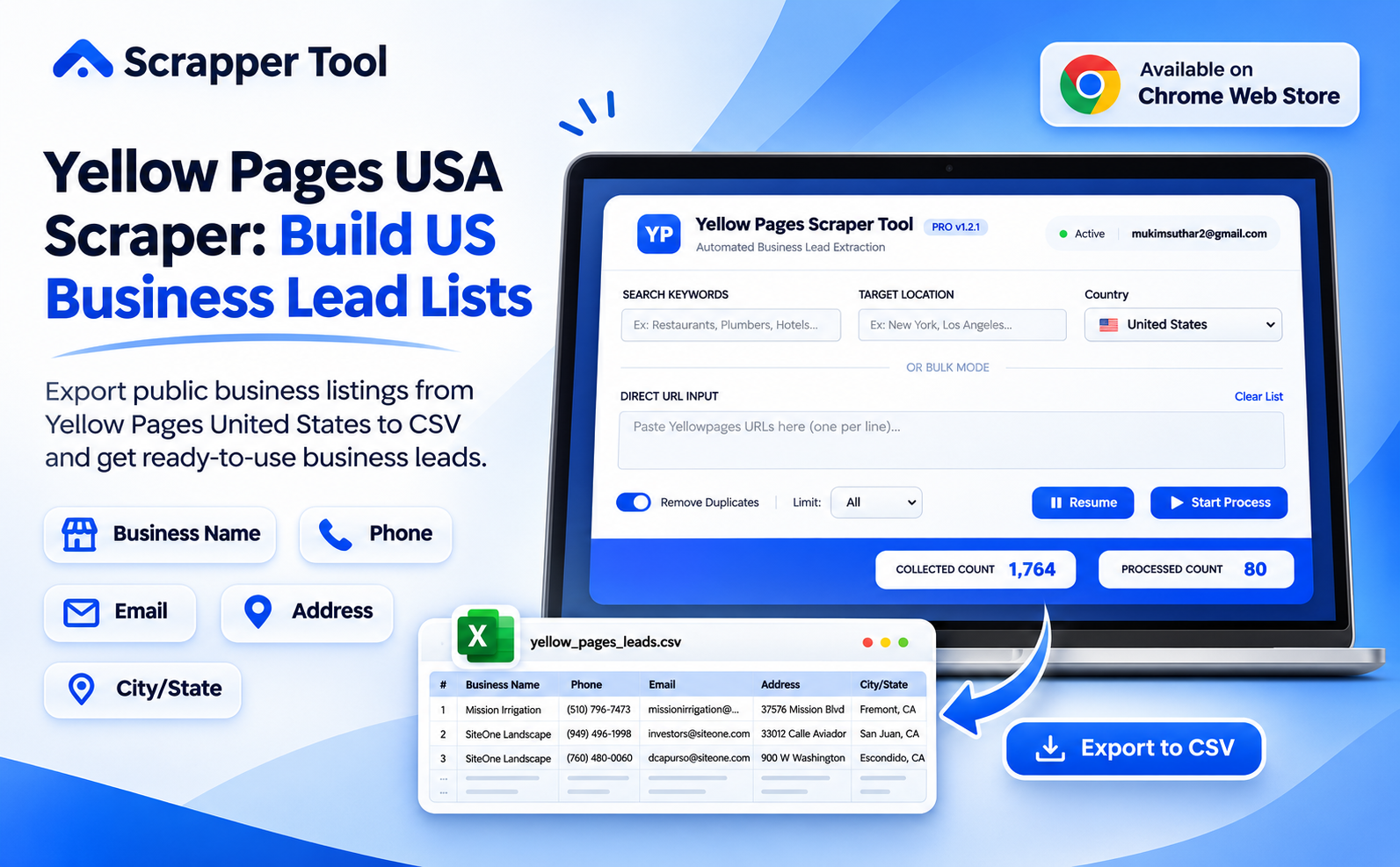
A Yellow Pages USA Scraper is a browser-based data collection tool that helps transform publicly visible US directory listings into structured business records. Instead of copying the name, address, website, and phone number from each listing manually, you can collect the available fields and review them together in a spreadsheet.
Scrapper Tool provides a dedicated United States Yellow Pages workflow with keyword-and-location search, multiple listing URL input, duplicate control, progress tracking, and CSV export. The exact fields available vary by listing and by the permissions and layout of the source website. The tool is independent and is not an official Yellow Pages product.
This article focuses on building a location-specific lead research list. If you need a more general introduction to installing and operating the extension, see our earlier Yellow Pages Chrome extension tutorial.
Why Search US Business Listings by City and Category?
For a US-focused marketing agency, service vendor, or research team, the goal is rarely to collect every business on a directory. A more useful dataset answers a defined question—for example, which plumbing businesses have public directory listings in Dallas, Texas, or which independent fitness studios appear in a selected area of Phoenix, Arizona.
Starting with a narrow category and location can help you compare businesses operating in the same local market, identify listings that include public websites, and create research segments your team can understand. It also makes reviewing the original source page much easier than dealing with an unfiltered nationwide export.
Before You Begin: Set Up Your Research Plan
You will need Chrome, permission to access the relevant public directory pages, the Scrapper Tool extension, and Microsoft Excel or another program that can open CSV files. Before collecting anything, write down your research purpose and a consistent naming convention.
- Business category: e.g., plumbing contractors, dental clinics, commercial cleaners, or pet groomers.
- Target location: one US city or metro area to begin with, then expand if necessary.
- Useful fields: business name, listing URL, phone, website, street address, city, state, and ZIP code where available.
- Verification method: review a sample of source links and check whether records appear current.
- Collection log: keep the query, collection date, source, and file name for later review.
Practical example: A research team wants to compare public listings for plumbing businesses in Dallas, Austin, and Houston. Rather than merging everything immediately, the team will collect each city separately and preserve a Search City field before combining the results.
Step-by-Step: Build a US Business Lead List from Yellow Pages
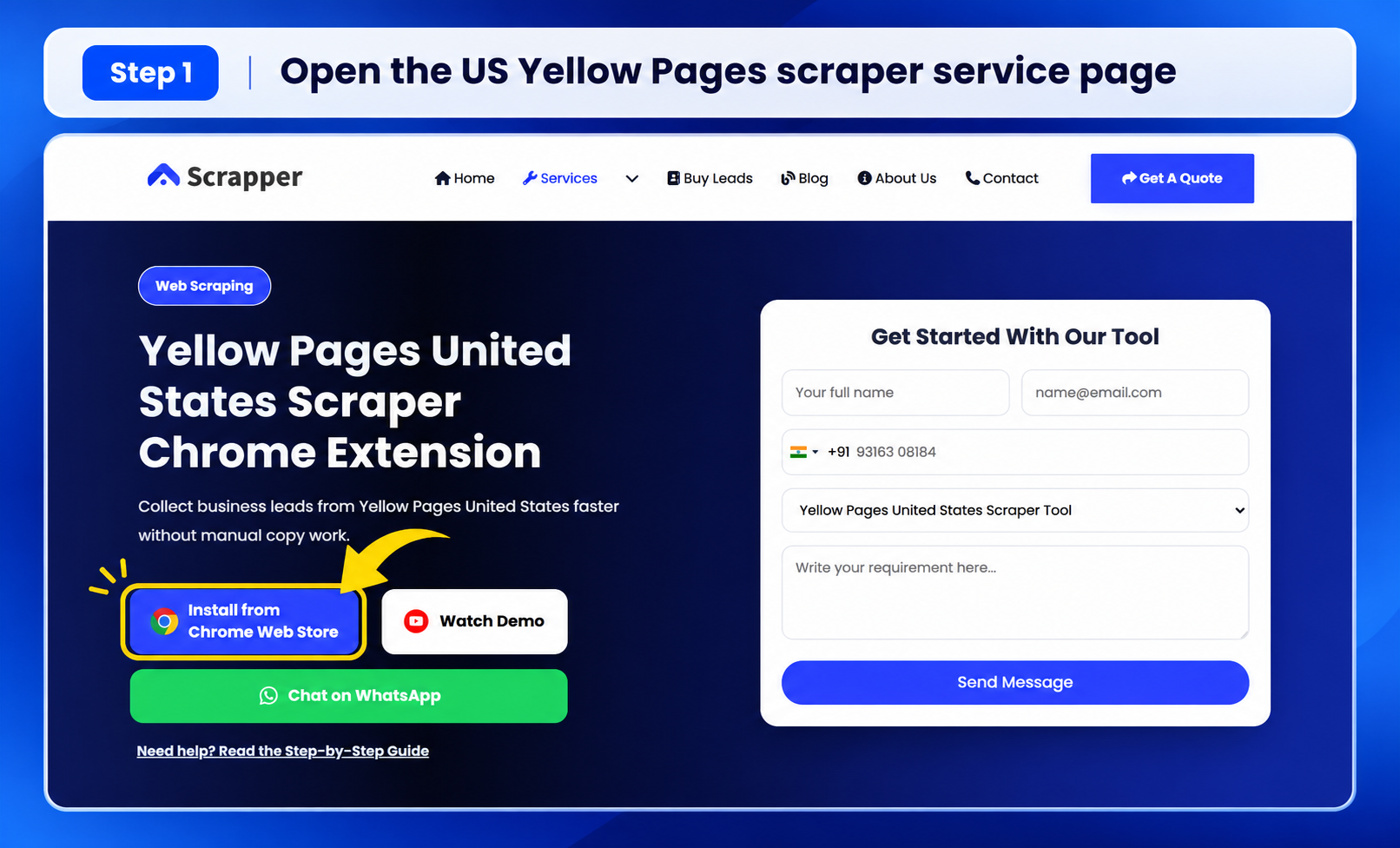
Step 1: Open the Yellow Pages United States Scraper Page
Visit the Scrapper Tool Yellow Pages United States Scraper page. Review its data fields and the supported search options. Use the Install from Chrome Web Store link on the service page to reach the official extension listing.
Check the publisher and requested permissions before installing. Avoid downloading unknown extension files or relying on third-party copies.
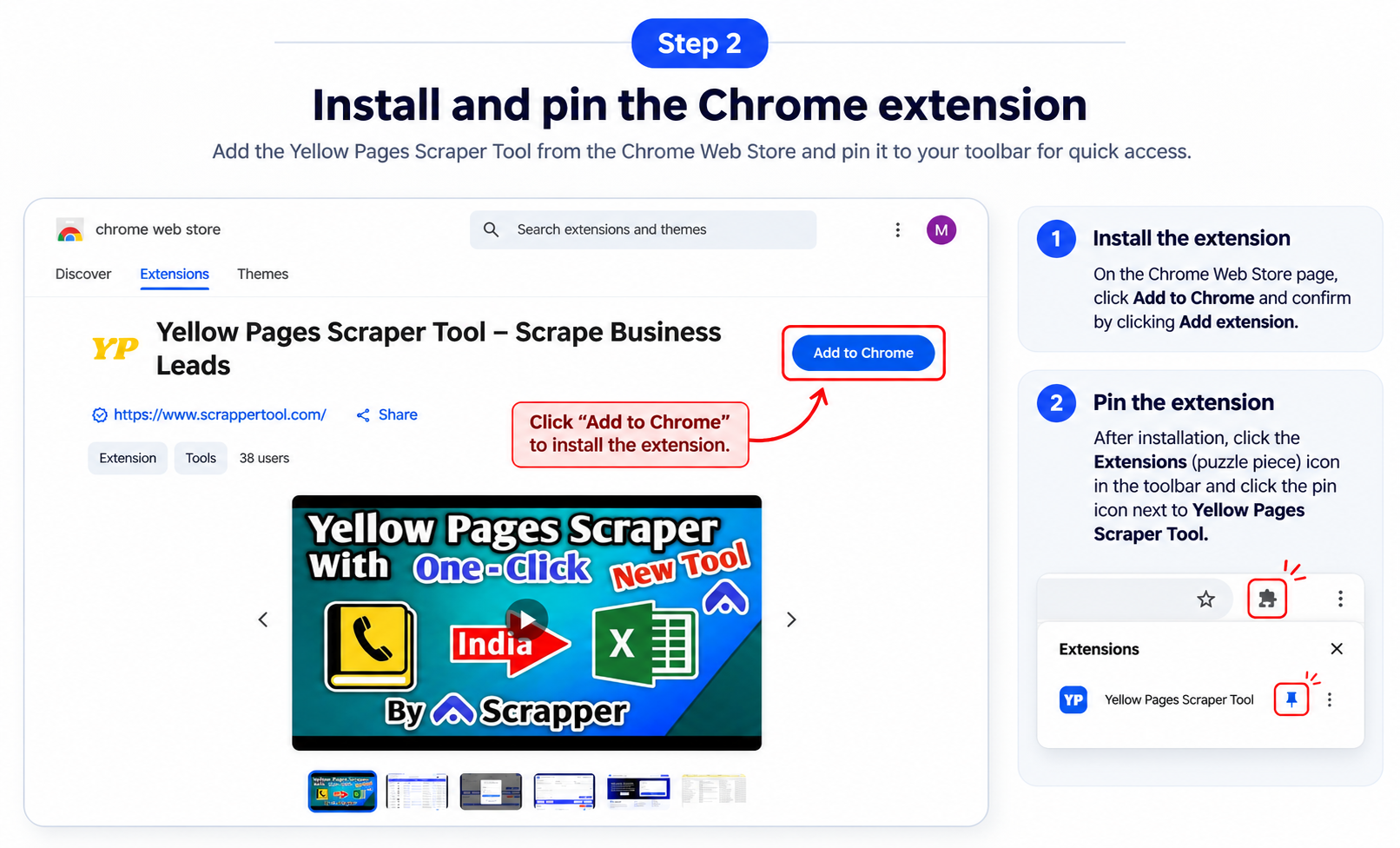
Step 2: Install the Chrome Extension
On the official Chrome Web Store listing, follow Chrome’s installation prompt. After installation, open Chrome’s Extensions menu and pin the Yellow Pages extension if that helps your workflow. If the extension opens an activation or setup screen, complete the steps displayed in your installed version.
The available controls can change with extension updates. Use the actual labels shown in your browser rather than assuming every version looks identical.
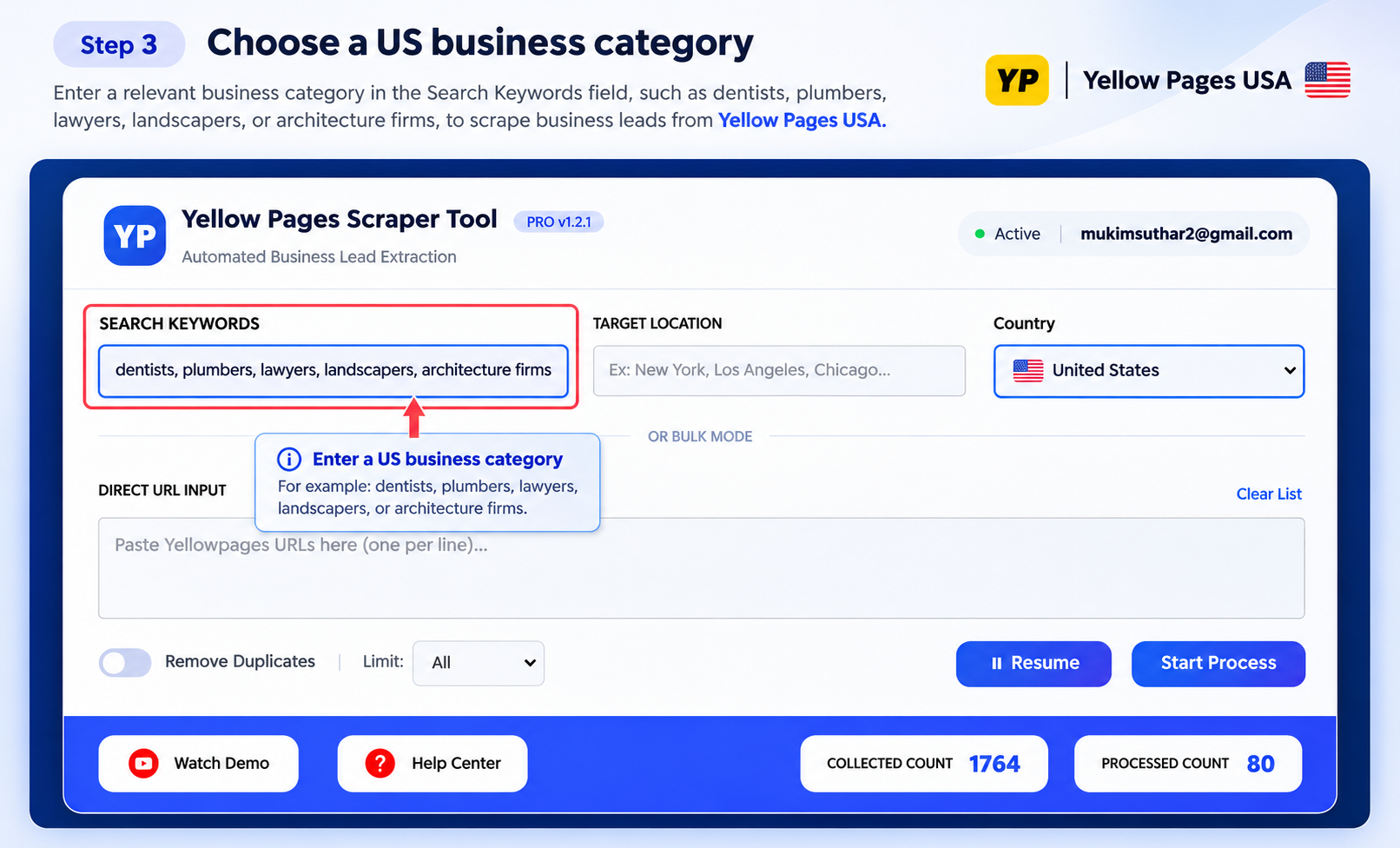
Step 3: Choose One US Business Category
Start with a clearly defined industry. For example, plumbers may include residential contractors, emergency repair services, and companies that also offer HVAC or drain cleaning. Decide which types are relevant to your research so you can filter the exported records later.
Use specific category language rather than generic terms such as “businesses.” If you need several related categories, record each search term in your collection log.
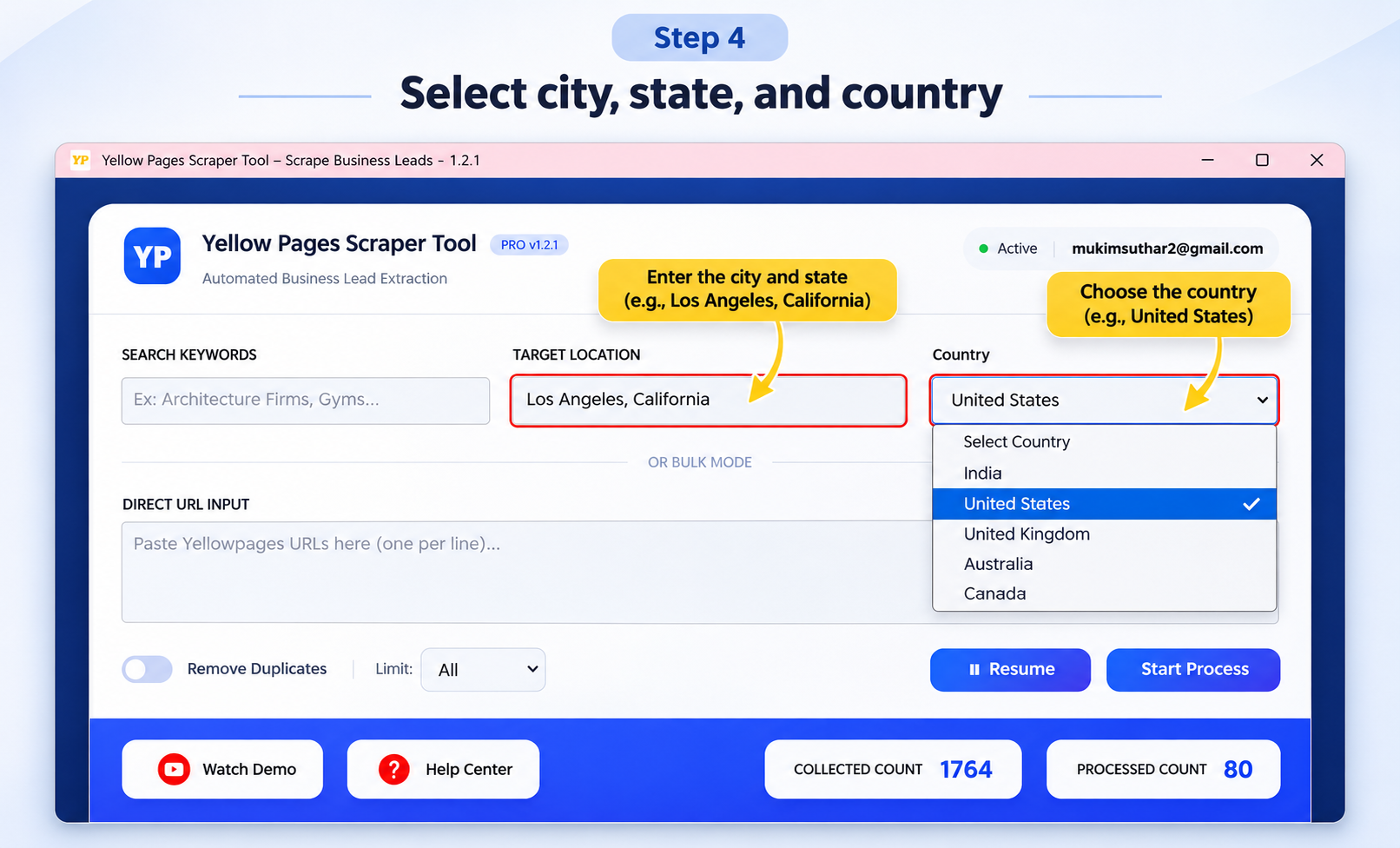
Step 4: Set the City, State, or Service Area
Now choose a geographic target, such as Dallas, TX. You can run another collection for Austin, TX and Houston, TX afterward. A city name by itself can be ambiguous, so include the state where the source search supports it.
If a business operates across a larger area, remember that its directory address may not represent every location it serves. Keep the original listing address and any visible service-area information separate rather than guessing.
Step 5: Review the Public Results Before Collecting
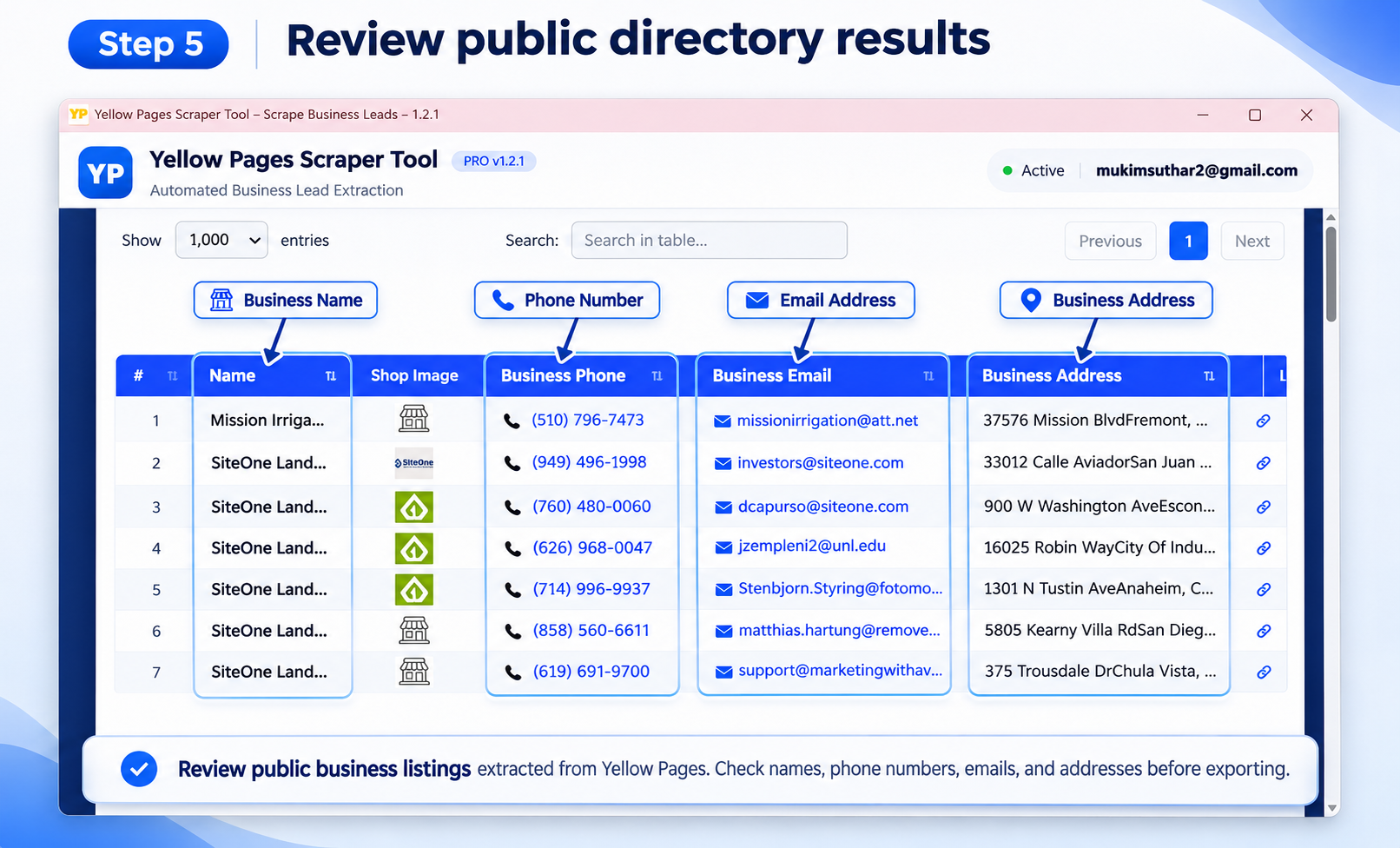
Open the relevant Yellow Pages results and review a few entries manually. Check whether the names and categories match what you are looking for and whether the source presents public contact fields. If the results contain unrelated categories, refine your search before starting a larger collection.
This short check is valuable because a clean output cannot fix an irrelevant starting query.
Step 6: Enter Search Details or Supported Listing URLs
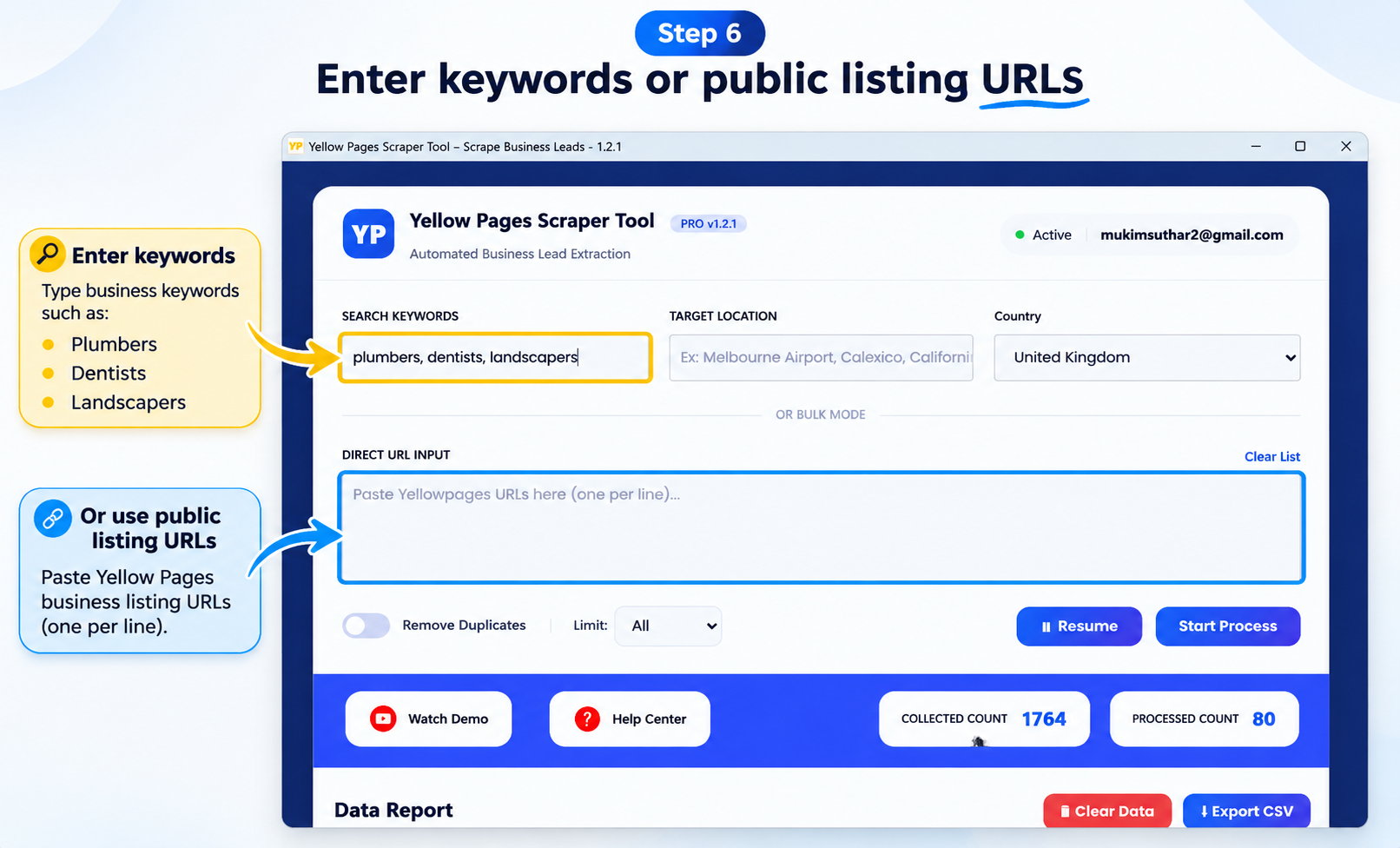
In the Scrapper Tool extension, use the supported keyword-and-location search or direct URL entry workflow. The United States service page also describes a bulk URL mode for processing multiple relevant public listing URLs. If you are using bulk URL entry, keep a record of which city or category each URL represents.
Do not include private pages, inaccessible account pages, or URLs you are not permitted to collect from. Start with one location before attempting a larger batch.
Step 7: Configure Duplicate Control and Start a Small Run
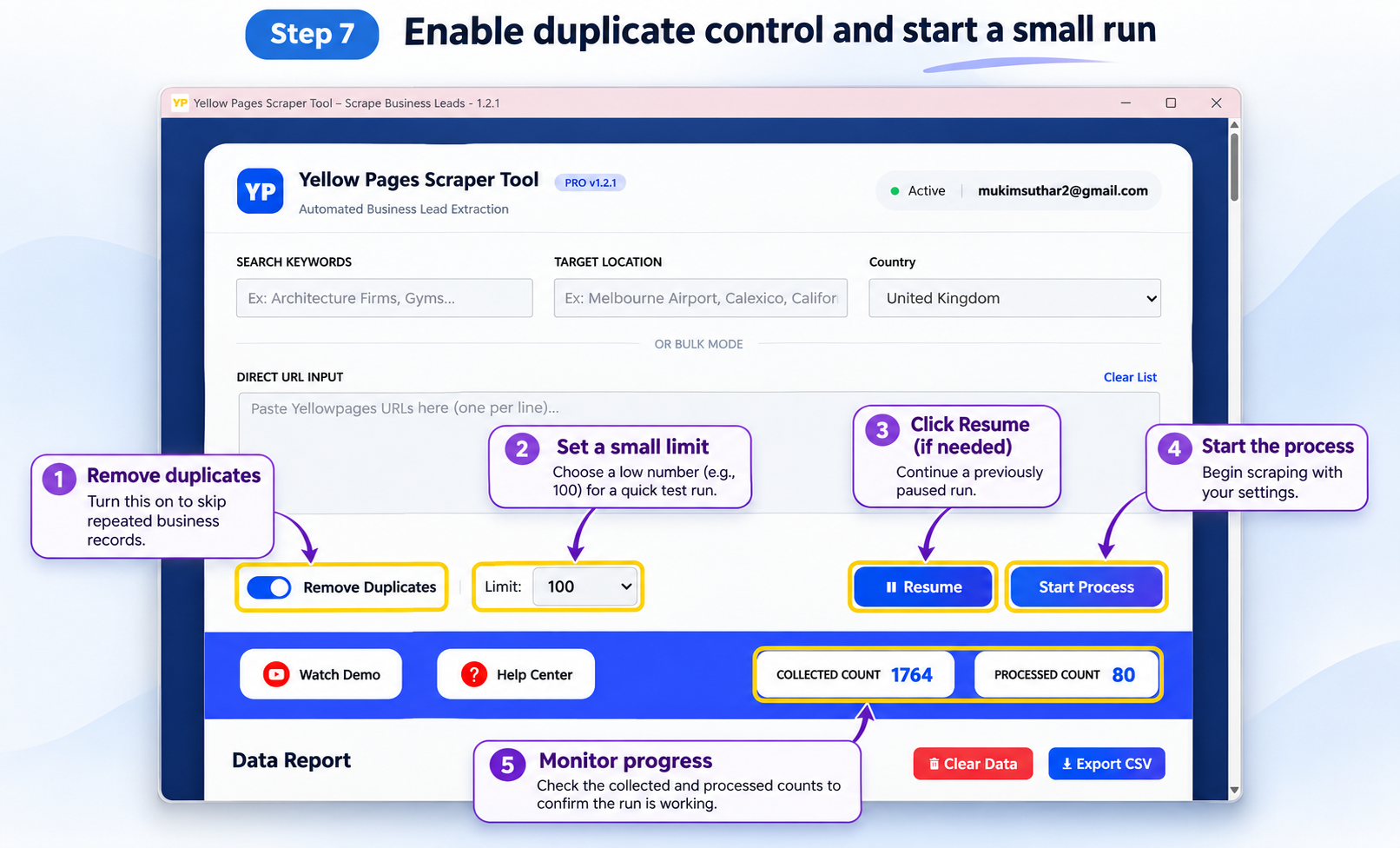
Review available duplicate-control options and begin with a small test. Scrapper Tool documents duplicate handling and live processed/collected counts for this tool, which can help you check whether a run is producing usable records.
Watch the collection status and stop if records clearly do not match the intended search. Collection limits and actual coverage depend on the tool version, available source results, and applicable access restrictions.
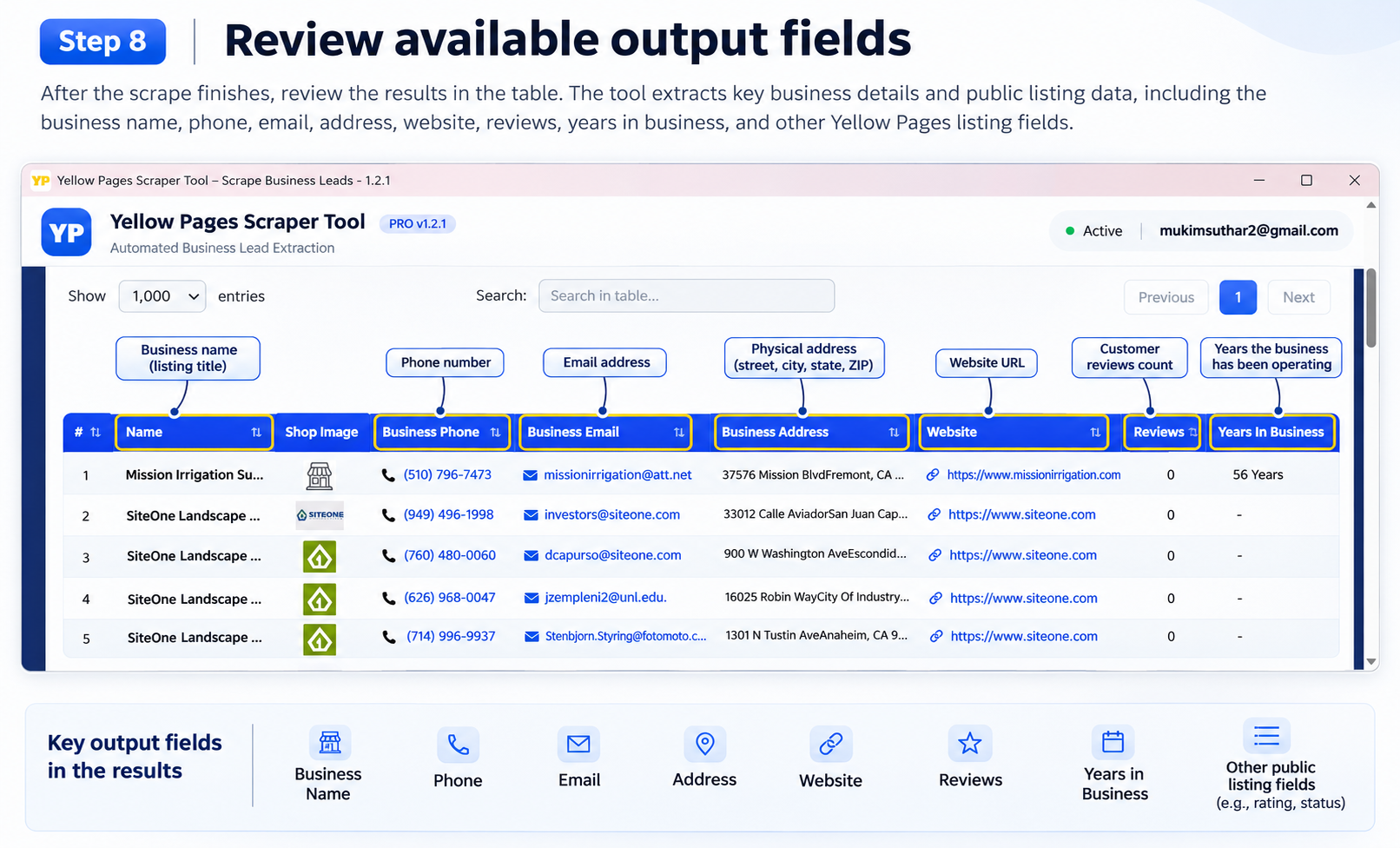
Step 8: Inspect Business Names, Addresses, and Contact Fields
Before exporting, review the data preview where available. A US business listing may show a name, phone number, website, category, street address, state, ZIP code, or other information. Some entries may not provide an email address or website. Leave missing information blank; do not invent it.
Pay attention to entries that appear to be the same business at multiple locations. These may be legitimate branches, not duplicate mistakes. Compare the full address and source URL instead of deleting everything with the same brand name.
Step 9: Export the Results to CSV
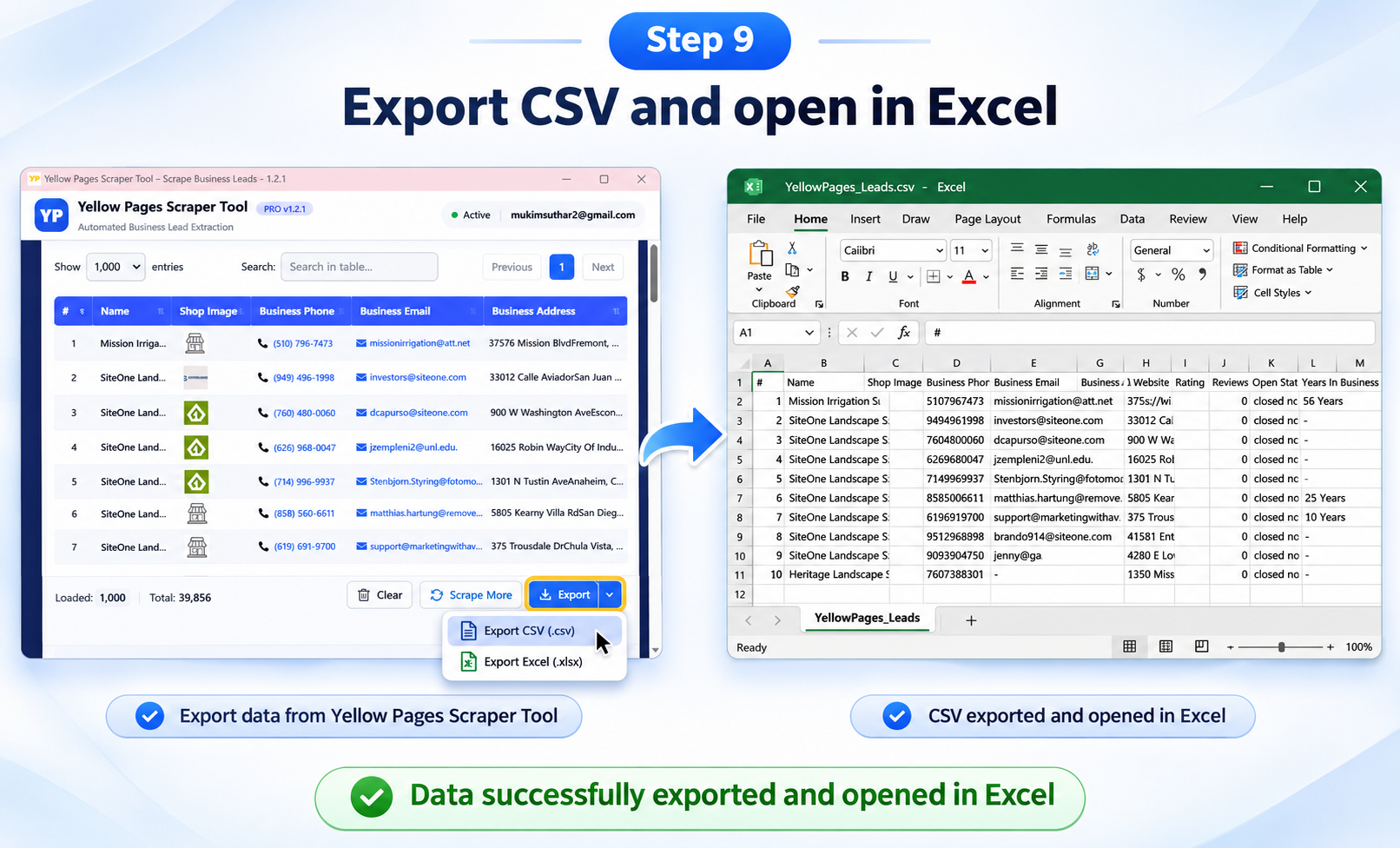
Use the extension’s export control to download your collected records as CSV. The dedicated United States service page explicitly documents CSV export. Open the resulting file in Excel or a compatible spreadsheet program.
Use a descriptive file name such as us-plumbers-dallas-2026-11.csv. Keep the untouched export as a backup, then make a separate copy for cleaning and analysis.
Step 10: Clean, Segment, and Verify the US Business List
In Excel, import the CSV via Data → From Text/CSV where available. This gives you an opportunity to review encoding and column types. For US ZIP codes, preserve the field as text so a leading zero is not removed from ZIP codes in states such as Massachusetts or New Jersey.
Then perform a simple quality review:
- Normalize state names or abbreviations in an extra column while preserving the source address.
- Flag missing phone, website, or ZIP-code values without filling them with guesses.
- Investigate duplicates using a combination of business name, street address, and listing URL.
- Add a Search City and Date Collected column.
- Open a sample of directory links and official business websites to verify details before further use.
- Separate records by your team’s approved research purpose rather than treating every listing as a sales-ready contact.
Which Business Fields Should You Keep in Excel?
A useful US directory research sheet is easy to trace back to its source. Consider these columns if the corresponding information is actually available:
| Field | Why it matters | Verification note |
|---|---|---|
| Business name | Identifies the listed company | Check spelling against the listing |
| Category | Supports industry filtering | Directory categories can be broad |
| Street, city, state, ZIP | Supports location grouping | Keep ZIP codes as text |
| Business phone | Public contact reference | Verify before any permitted communication |
| Website | Helps assess the business profile | Some listings have no website |
| Listing URL | Makes the record auditable | Retain for source checks |
| Collection date | Shows how old the record is | Add this to your research sheet |
Other fields such as public email, service area, ratings, reviews, or business images may be available for some listings. Their presence is never guaranteed. Record what the source provides and maintain a clear distinction between extracted information and fields your team adds later.
Example: Compare Local Plumbing Businesses in Three US Cities
Suppose an agency wants to understand how plumbing businesses present themselves in Dallas, Austin, and Houston. The agency conducts separate searches using the same broad category, exports the public directory records for each city, and combines the files in a research workbook.
The team then creates a PivotTable that counts the collected listings by search city, and another view that groups the entries by whether the listing shows a website. The analysts also review a sample of directory profiles to identify whether the same company appears in multiple cities.
These counts describe only the team’s collected sample. They are not a complete count of all plumbing businesses in Texas, and the presence or absence of a website field does not prove that a business has no website elsewhere.
Example worksheet fields: Search Keyword, Search City, Business Name, Category, Phone (if public), Website (if shown), Street Address, State, ZIP, Directory URL, Verification Status, Date Collected.
How to Qualify a Business Listing Without Overstating the Data
Not every directory record will fit your project. Instead of labeling all rows “qualified leads,” use neutral review statuses. For example:
- Relevant: The business category and location match your research brief.
- Needs verification: Critical information is missing or the listing appears outdated.
- Out of scope: The business does not match the industry or geography selected.
- Possible duplicate: The same business and location may already exist in your file.
A consistent review process is more credible than claiming that every extracted listing is a verified sales opportunity.
Manual Research vs a Structured CSV Workflow
Manual research can work for a handful of listings. You open each Yellow Pages page, record relevant fields, and keep source links. The benefit is close review of each entry, but it becomes repetitive across multiple cities.
A scraper-supported workflow can help organize public listings into a consistent export. The quality of the final list, however, still depends on your search choices, source availability, duplicate checks, and verification. The extension does not replace those decisions.
Who Can Use a US Yellow Pages Research List?
Digital Marketing and Local SEO Agencies
Study how local businesses appear in public directories, identify incomplete public listings, and research market coverage for a defined city or service category. Do not assume a listing with no website field lacks an online presence.
Market Research Teams
Build a documented sample of public businesses in a city, compare visible categories, and review regional directory coverage. Record the date and method so the analysis can be repeated.
B2B Sales and Business Development Teams
Use relevant business listings as an initial research source, then independently verify organizational fit and permitted contact methods. A public phone number is not blanket permission for automated calls or unwanted messages.
Freelancers and Small Agencies
Create manageable, industry-specific datasets to understand which local segments may need a particular service. Focus on business relevance and respectful communication rather than bulk messaging.
Common Problems and Practical Fixes
The Search Returns Unrelated Businesses
Narrow the category or add the city and state. Review the first few listings before running a larger collection. Avoid trying to fix a broad query solely through Excel.
Some Listings Have No Phone, Email, or Website
That may reflect the information available on the source page. Leave missing values empty and verify important records manually. Do not assume that every listing will expose every field.
One Company Appears More Than Once
Check for branch locations, suite numbers, slightly different addresses, and duplicate directory URLs. Keep legitimate branches as separate records when appropriate.
The ZIP Code Loses Its Leading Zero
Import ZIP values as text rather than letting Excel automatically interpret them as numbers. Preserve the original value in an unedited source column.
The CSV Doesn’t Open Cleanly in Excel
Use Excel’s Data → From Text/CSV importer to confirm delimiter and encoding settings. Check that addresses containing commas remain in a single field.
Records Become Outdated
Directory information can change. Record the collection date and periodically verify source listings when accuracy matters. Do not present old exports as current without review.
Responsible Use of US Business Directory Data
Use only public information that you are permitted to access and collect. Follow the directory’s applicable terms and any privacy, marketing, and communication rules that apply to your intended use. If you plan outreach, verify the business relevance, use appropriate lawful channels, honor opt-outs, and avoid unsolicited bulk messaging or calling. Do not redistribute sensitive contact data or imply a directory endorsed your project.
Scrapper Tool is an independent provider of browser tools. This guide is intended for legitimate business research, directory analysis, and permitted business workflows, not for bypassing restrictions or collecting private information.
Frequently Asked Questions
What is a Yellow Pages USA Scraper?
It is a tool that organizes publicly visible US Yellow Pages business-listing information into structured records that can be reviewed and exported, subject to source availability and permissions.
Can I search Yellow Pages businesses by city and category?
Yes. Scrapper Tool’s United States Yellow Pages service describes keyword-and-location search, helping users create more focused lists based on business type and US geography.
Can I export US Yellow Pages business listings to CSV?
Yes. The dedicated Scrapper Tool service documents CSV export. You can open the CSV in Excel to review and organize the collected public listing fields.
Will every US business record include an email address?
No. Contact details depend on the information actually shown on each public listing. Do not assume missing email or phone fields can always be filled automatically.
How can I avoid duplicate businesses in my export?
Use the available duplicate-control features and review records by business name, address, and source URL. Keep legitimate separate branches when they represent distinct locations.
Can I use the data for local SEO research?
Yes, when the information is obtained and used lawfully. Public directory listings can help you study local business categories and listing completeness, but you should verify important details directly.
Does a public business phone number mean I can send marketing messages?
No. Public visibility does not automatically provide consent or remove legal and platform obligations. Verify the purpose and comply with applicable communication rules before outreach.
Is Scrapper Tool affiliated with Yellow Pages?
No. Scrapper Tool’s extension is independently provided. Mention of Yellow Pages identifies the directory being researched and does not imply official endorsement.
Start a More Focused US Local Business Research Project
A valuable business list is not simply a long CSV file. It should answer a clear question, use relevant search criteria, preserve source URLs, and show which records have been verified.
Begin with one category and one US city, review a small sample, and improve your process before combining more locations. To explore the browser workflow, visit Scrapper Tool’s Yellow Pages United States Scraper and check the available installation, collection, and CSV export options.
