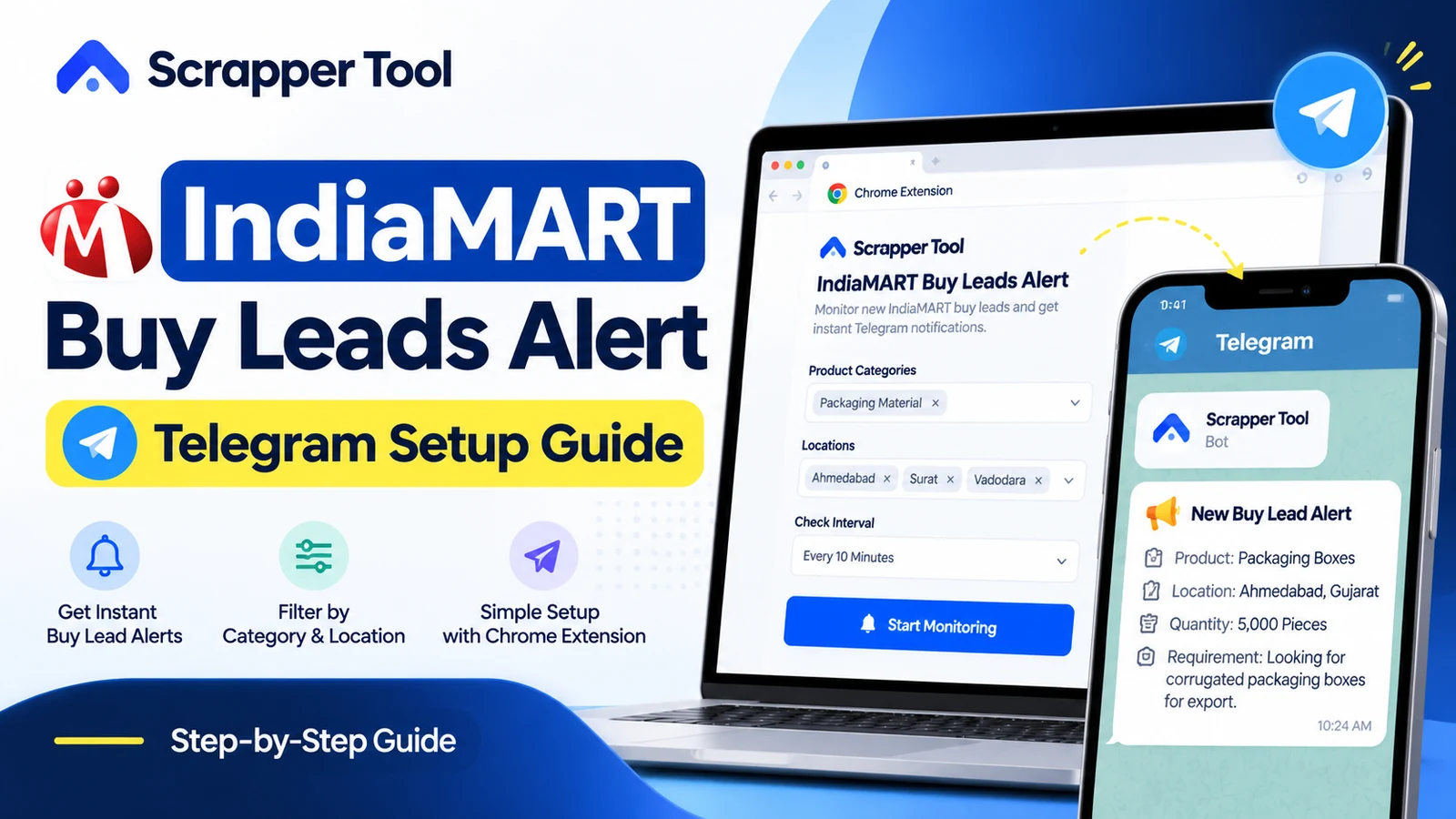

An IndiaMART Buy Leads Alert is a notification workflow for sellers who want to know when a new buying requirement matches their business. Instead of repeatedly opening the seller dashboard, you configure monitoring preferences and receive updates when relevant leads are detected.
The IndiaMART Buy Leads Alert Chrome extension from Scrapper Tool supports category filtering, location filtering, configurable checking intervals, Telegram notifications, and duplicate-alert prevention. It works with your own authenticated IndiaMART seller session. It is an independent extension, not an official IndiaMART product.
If you want to explore the features before installing, visit the IndiaMART Buy Leads Alert Chrome extension service page.
What You Need Before Setting Up Alerts
- A Chrome browser on the device where you plan to run the extension.
- Your own active IndiaMART seller account, signed in with permission to access the relevant Buy Leads page.
- A Telegram account that you control.
- A short list of product categories and target locations.
- Time to run a small test before relying on notifications for daily work.
Important: Available leads depend on your IndiaMART account permissions and what the platform displays. An alert is not a promise of a buyer’s contact number, an order, or a successful sale. Follow IndiaMART’s applicable terms and your organization’s data-handling rules.
How to Set Up IndiaMART Buy Lead Alerts on Telegram
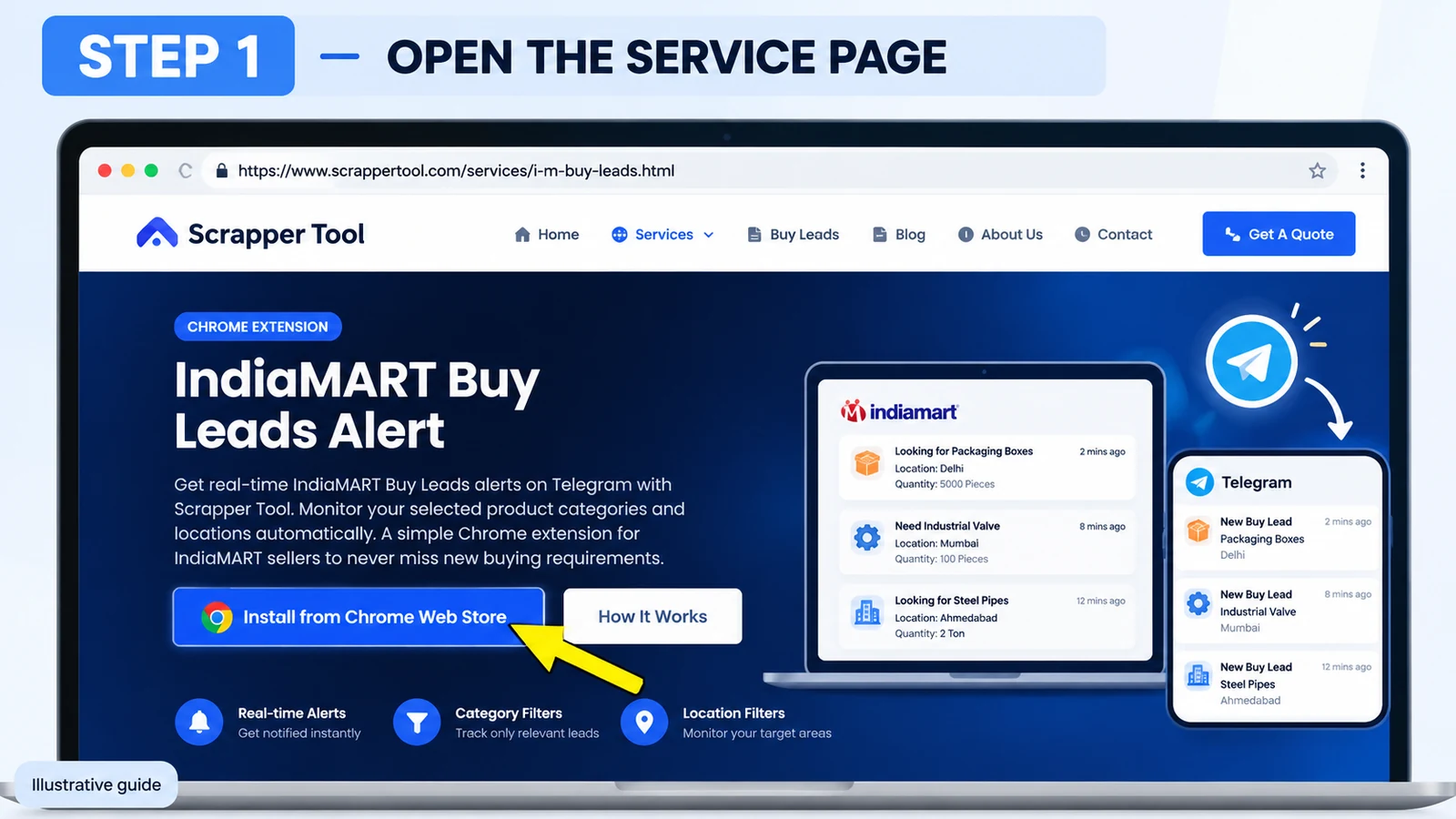
Step 1: Open the Scrapper Tool Extension Page
Go to the IndiaMART Buy Leads Alert service page. Review what the extension does and click its Install from Chrome Web Store option. You can also open the Chrome Web Store listing directly.
Check that you are viewing the correct extension before installing. Do not download an extension package from an unknown website.
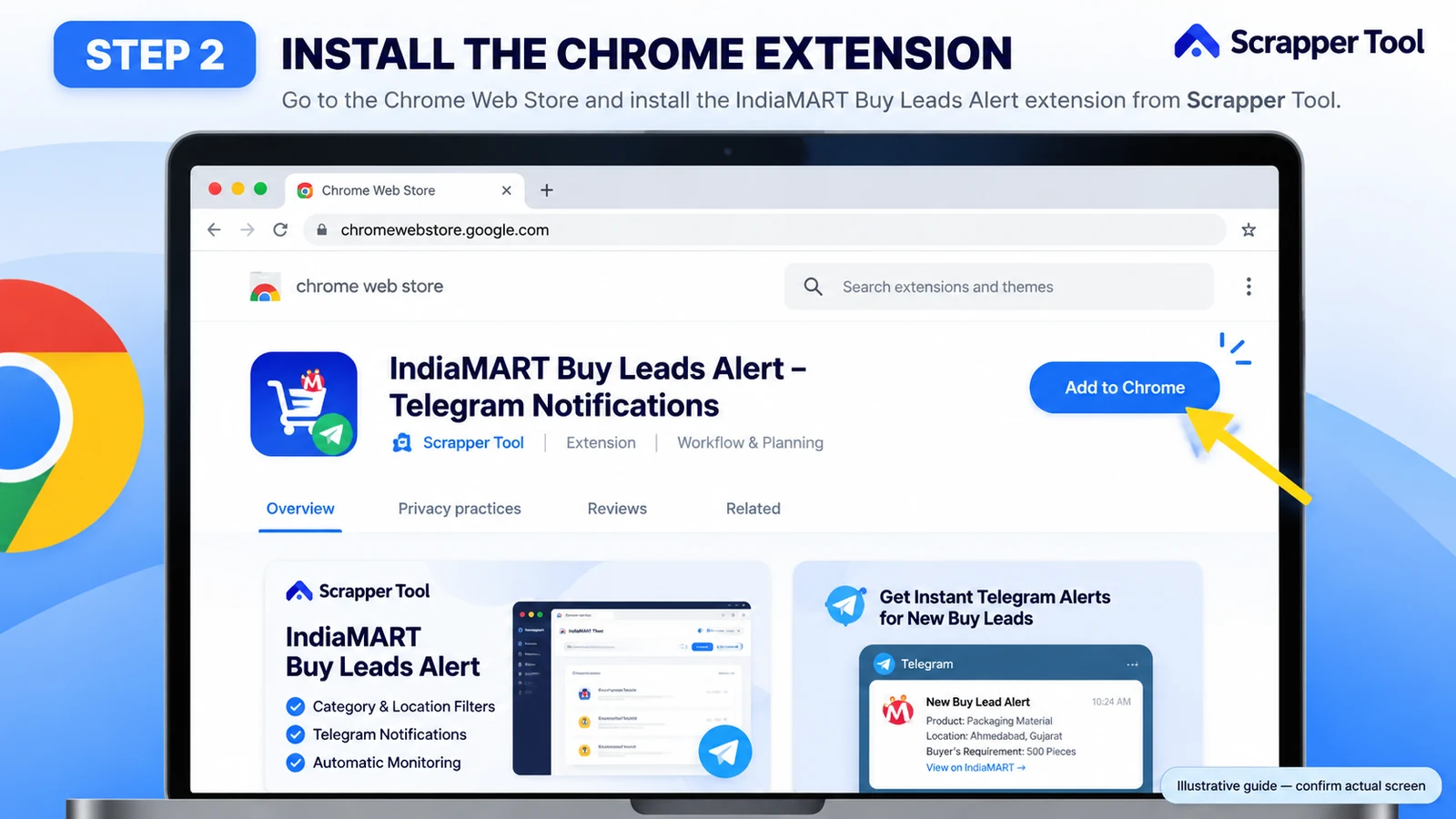
Step 2: Install the Extension in Chrome
On the Chrome Web Store page, select the install option and review the requested permissions. Once installed, open Chrome’s Extensions menu and pin IndiaMART Buy Leads Alert so that you can find it easily.
If you manage multiple Chrome profiles, install it in the profile used for your authorized IndiaMART seller account.
Step 3: Sign In to Your IndiaMART Seller Account
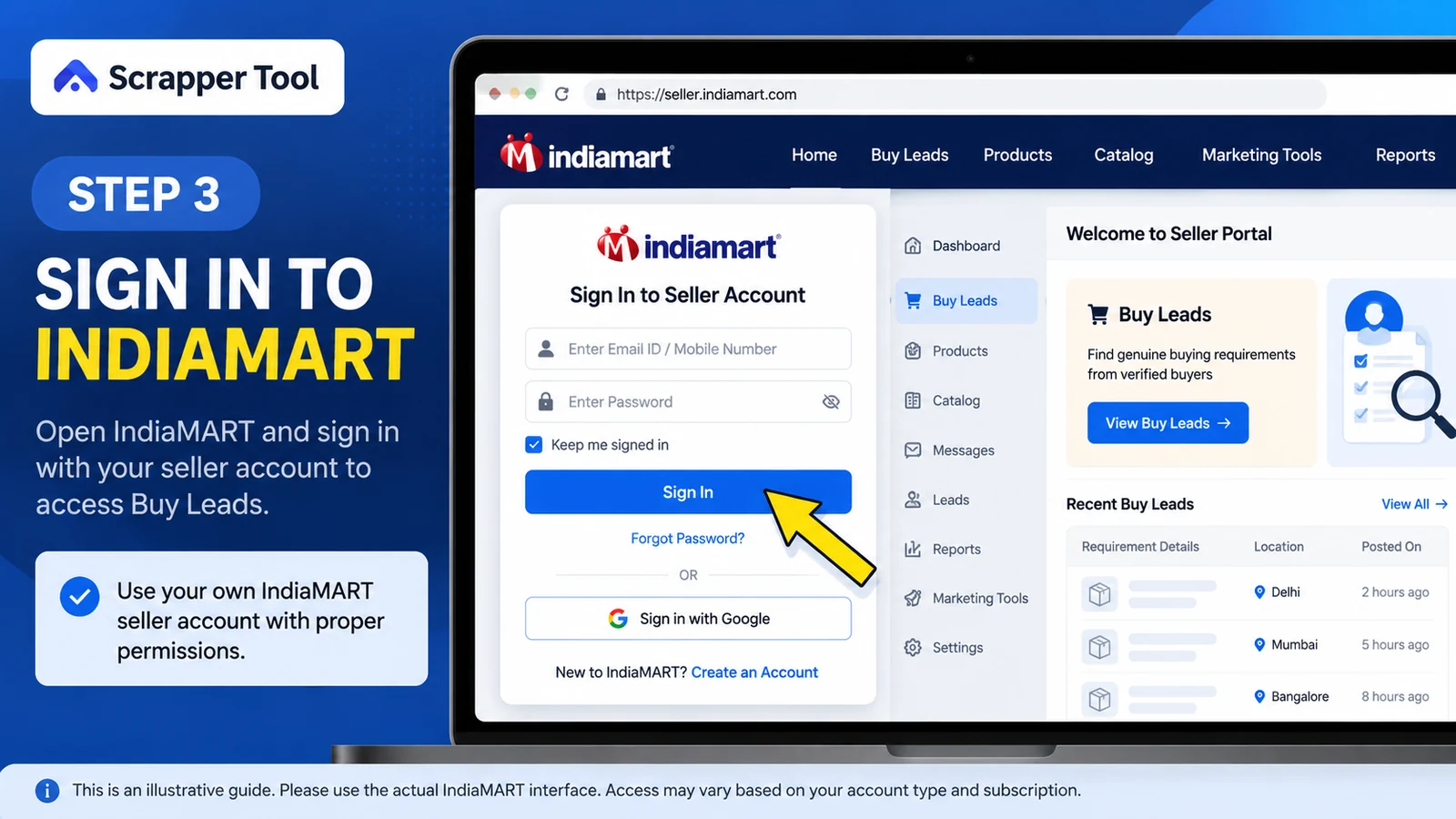
Open IndiaMART and sign in to your own seller account. Navigate to the Buy Leads area available to your account. The extension is designed to work with the authenticated session you already control; it does not bypass account login, platform restrictions, or paid access.
If the correct Buy Leads page is not accessible, resolve that account-access issue before configuring monitoring.
Step 4: Open the Extension’s Monitoring Settings
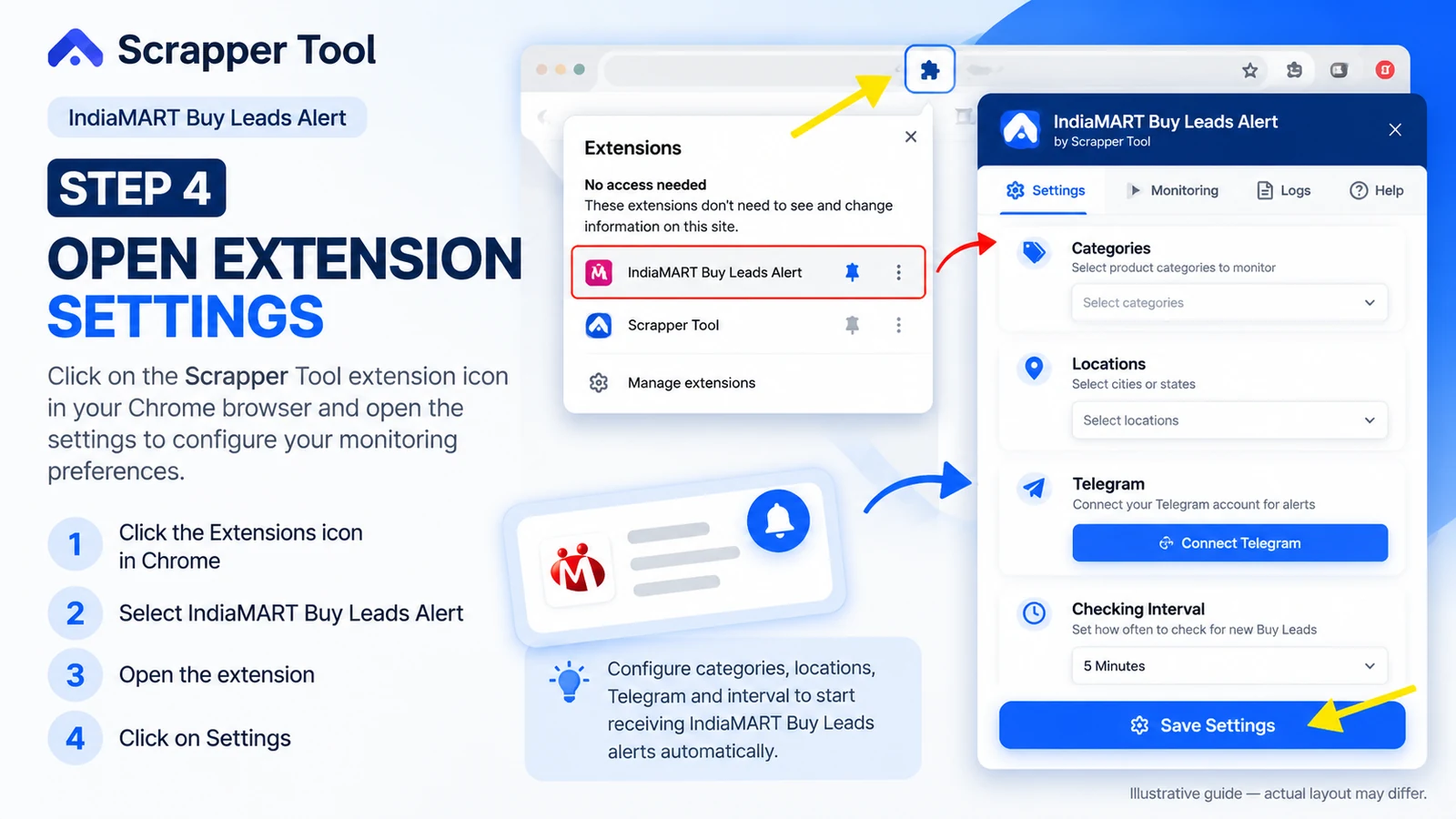
Click the pinned extension icon and open its monitoring or settings interface. Review the available options for categories, locations, Telegram connection, and checking intervals. The exact labels may vary by extension version, so follow the controls shown in your installed version.
Start with a simple configuration rather than trying to monitor every possible product and location at once.
Step 5: Connect Your Telegram Account
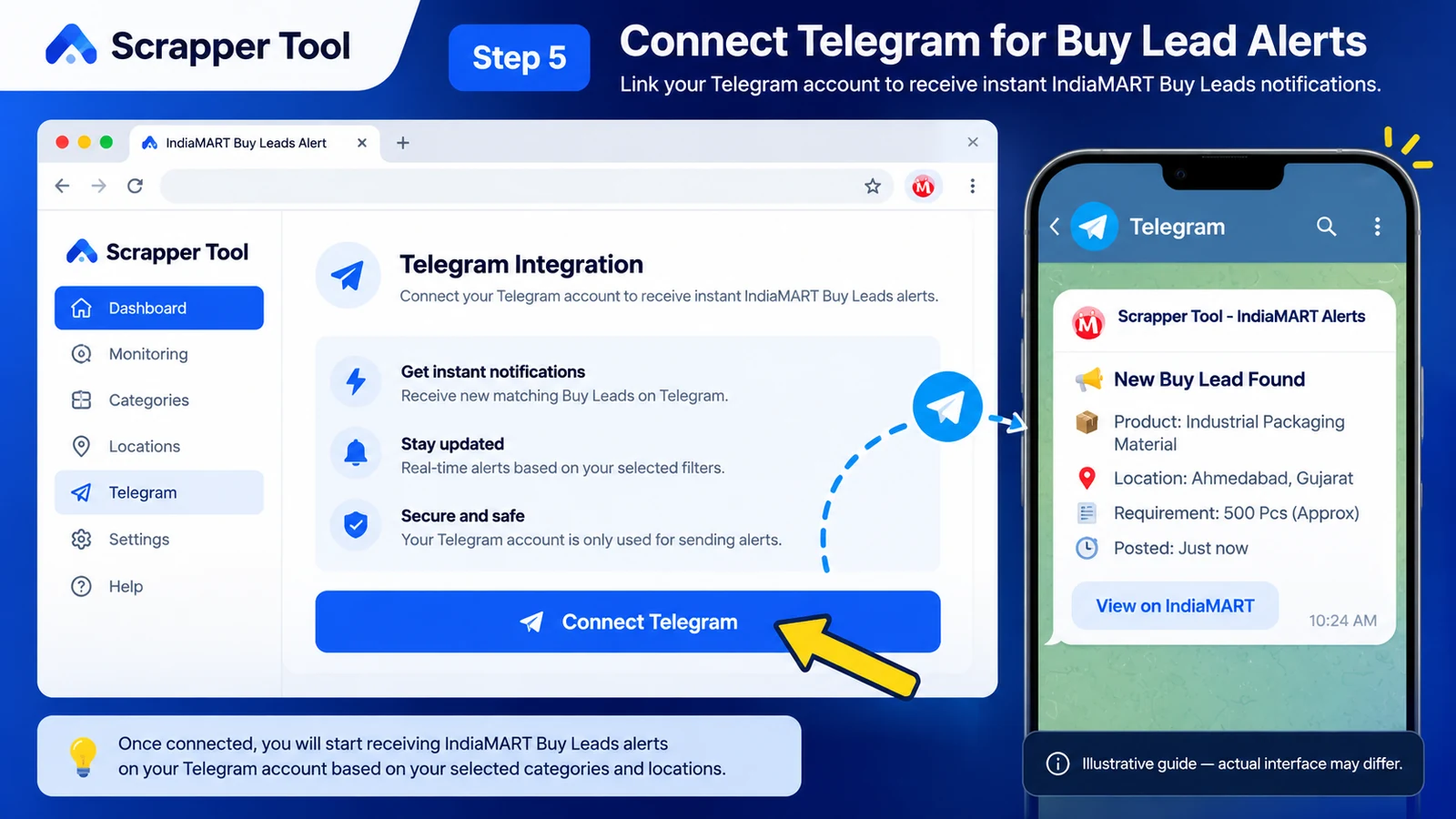
Use the extension’s Telegram connection setup and follow the on-screen authorization instructions. Make sure the selected Telegram account is the account on which you want to receive lead notifications.
After the connection is completed, look for an available test or verification option. If no test control is provided, verify the connection through a normal matching-lead notification while the monitor is running. Never publish or share Telegram login codes, passwords, session tokens, or private chat details.
Step 6: Choose Product Categories and Locations
Pick categories that closely describe what you actually sell. Then select the cities, states, or regions you can serve. This reduces alerts that may be interesting but not actionable.
For example, a packaging-material supplier might monitor relevant packaging categories in Ahmedabad, Surat, and Vadodara if those are genuine service areas. A supplier serving all of India may choose broader coverage, but should still review whether the alerts remain useful.
Avoid selecting unrelated categories only to increase the notification count. More alerts do not automatically mean more qualified enquiries.

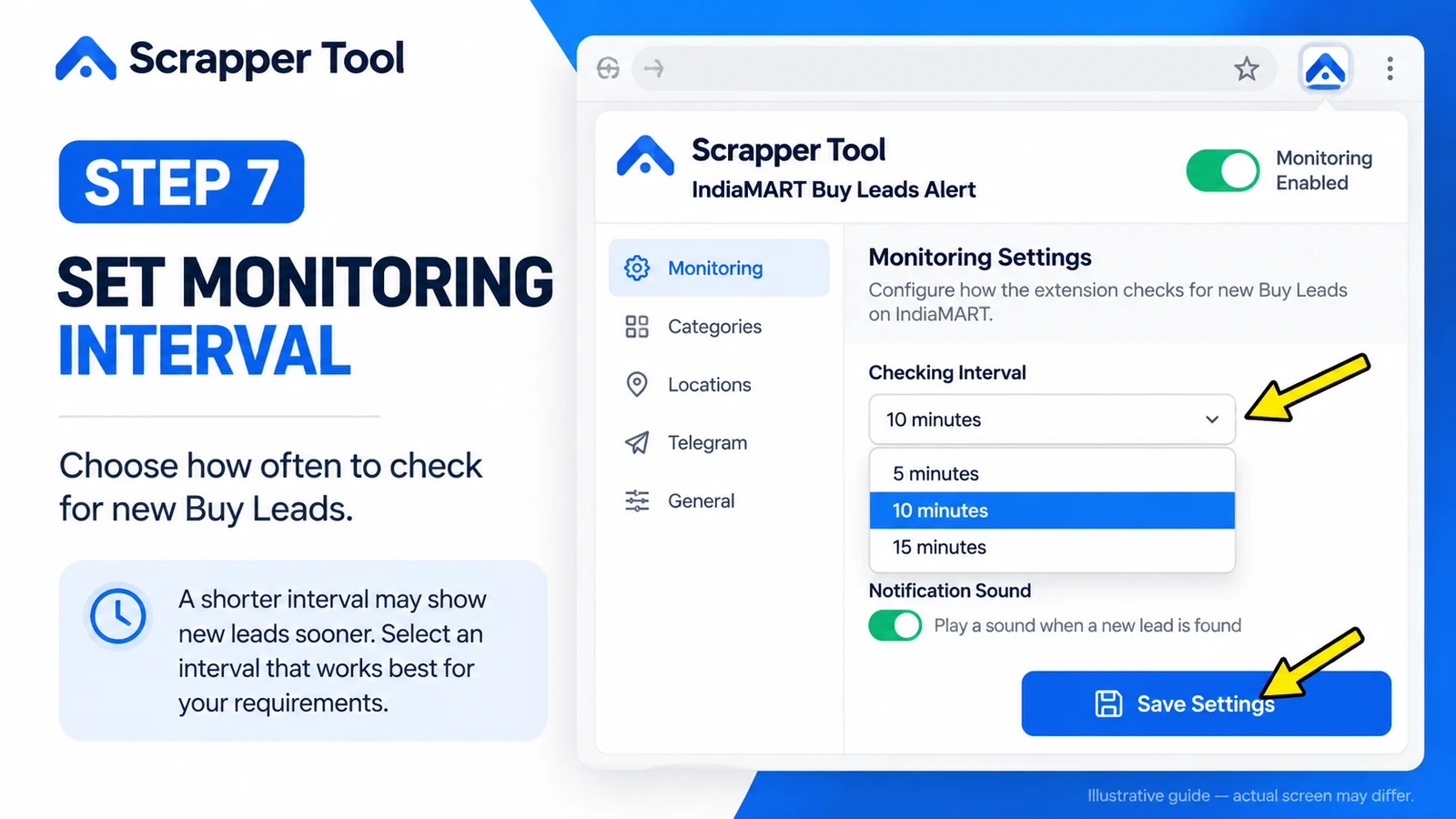
Step 7: Configure the Checking Interval
The extension supports custom monitoring intervals. Choose a frequency that fits your workflow and available platform access. A shorter interval may surface updates sooner, but it does not guarantee immediate delivery or that every buying requirement will be available.
Use the interval controls provided by the extension, respect applicable platform restrictions, and monitor for errors. Avoid aggressive settings that interfere with platform operation.
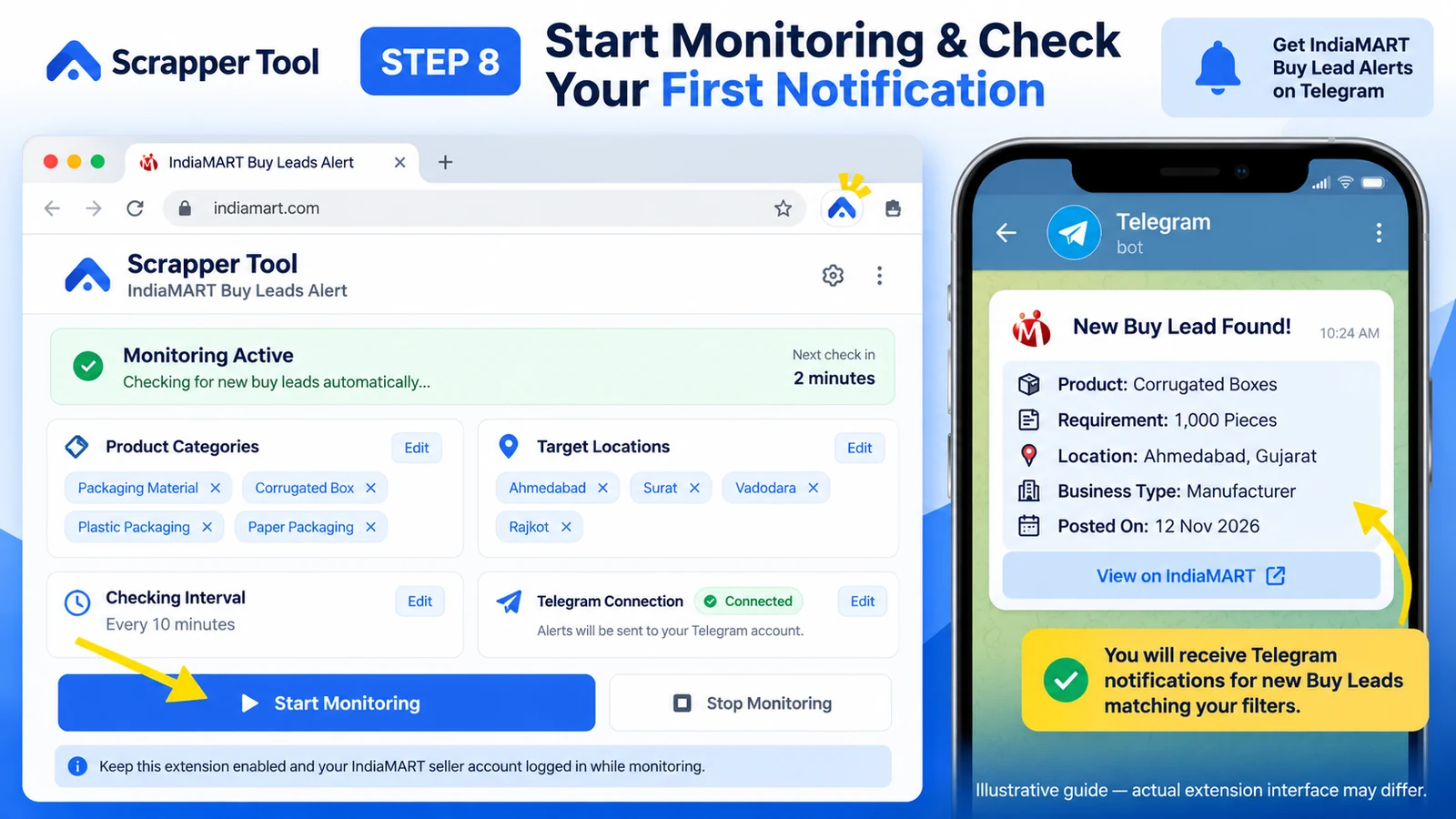
Step 8: Start Monitoring and Check the First Alerts
Start or enable monitoring using the control shown in your extension. Keep the relevant browser/session available as required by your installed version. The Chrome extension checks for new matching Buy Leads and sends a Telegram alert when one is detected.
For your first test, confirm three things: the alert relates to a selected category, the location matches your target area, and the lead is accessible from your own IndiaMART account. If no matching lead appears, that alone does not mean the setup has failed.
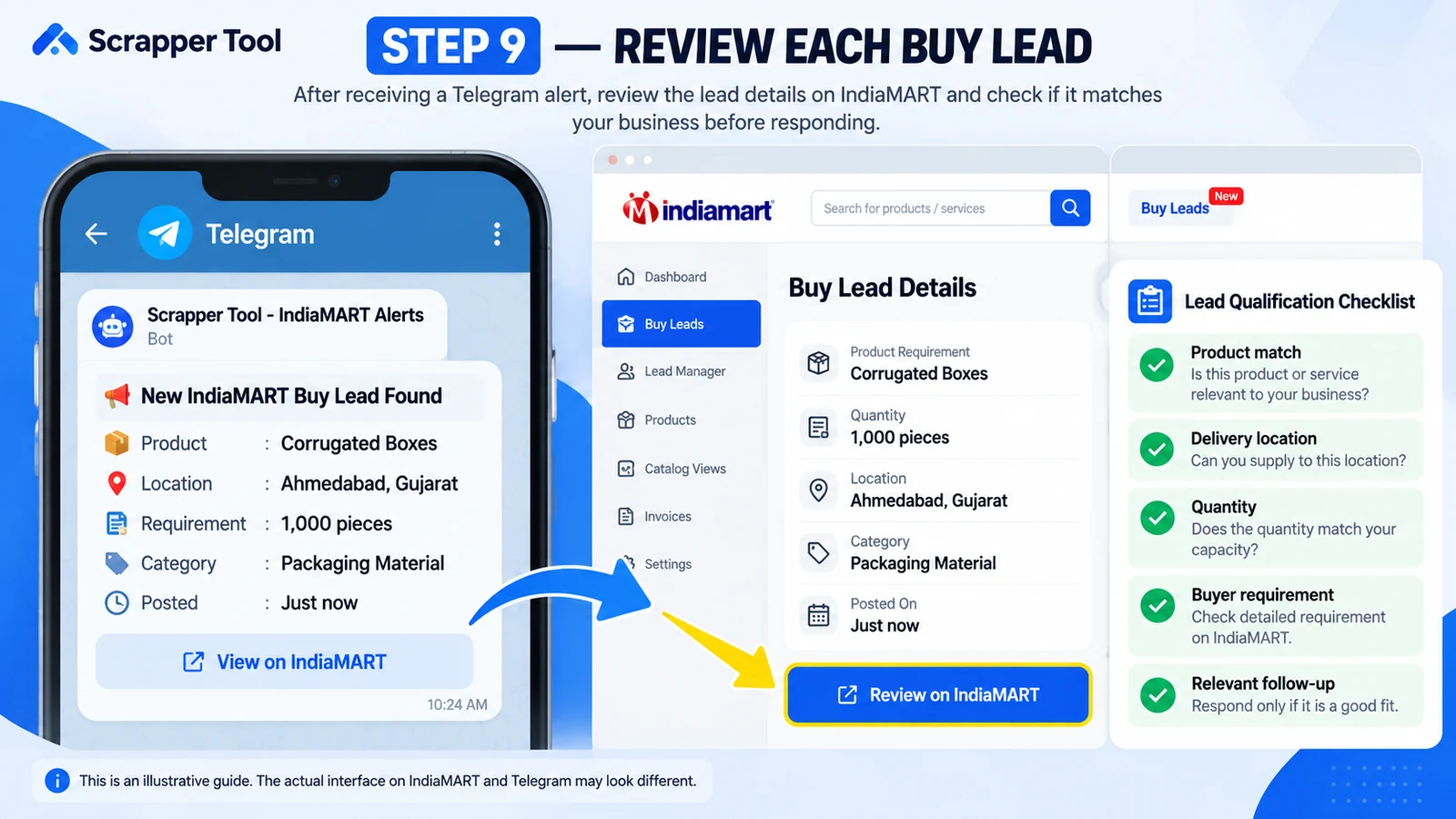
Step 9: Review Each Alert Before Responding
Treat a Telegram notification as a prompt to review an opportunity—not as an instruction to message someone automatically. Open the relevant information using your authorized seller account, check the buyer’s requirements, and respond only when your product or service is a suitable match.
A basic review checklist is: product match, delivery location, requested quantity if shown, business relevance, account access, and follow-up ownership. Record the outcome so your sales team does not contact the same buyer unnecessarily.
Example: A Supplier Monitoring Buy Leads Across Three Cities
Imagine a business that supplies industrial packaging materials in Gujarat. The team wants to notice buying requirements from Ahmedabad, Surat, and Vadodara without continuously checking the seller dashboard.
The team selects the relevant product categories, adds the three locations, connects a shared work-approved Telegram destination, and runs a test. When a matching alert arrives, a team member reviews the requirement within IndiaMART, checks stock and delivery feasibility, and prepares an appropriate response.
This example illustrates a workflow, not a guaranteed outcome. The extension helps with noticing potentially relevant leads; the team still decides whether the enquiry is genuine, suitable, and worth pursuing.
Manual Dashboard Checking vs Telegram Alerts
| Task | Manual checking | With Scrapper Tool alerts |
|---|---|---|
| Discover new requirements | Open and refresh the seller Buy Leads page | Receive notifications for newly detected matches |
| Narrow relevant leads | Review listings and filters manually | Configure product-category and location filters |
| Monitor at intervals | Remember to check repeatedly | Choose a monitoring interval in the extension |
| Avoid repeat attention | Track previously viewed leads yourself | Duplicate-alert prevention reduces repeat notifications |
| Respond to buyers | Review the enquiry and respond through permitted channels | Still review the enquiry and respond through permitted channels |
Key distinction: An alerting extension is not the same as a bulk lead-export tool or a CRM. It helps you notice relevant opportunities; it does not replace lead qualification or relationship management.
Why Sellers May Prefer Category and Location Filters
Broad monitoring can create unnecessary notifications. A manufacturer that serves only a few districts may not benefit from alerts about requirements in locations where it cannot deliver. Similarly, a supplier selling corrugated boxes may not want every alert related to unrelated packaging machinery.
Start narrow. Review a few days of alerts, identify repeated irrelevant categories, and refine the selection. Focus on the quality of opportunities reviewed rather than the number of Telegram messages received.
What Information Can You Expect in an Alert?
A notification lets you know that a matching Buy Lead has been detected. The exact fields shown can vary with the lead, IndiaMART’s interface, your seller-account access, and the extension version. Product or requirement details, location, and other listing information may be available, but should not be assumed for every alert.
Never assume that a notification reveals private buyer contact information or grants additional paid-lead entitlement. View lead details only through the access that your IndiaMART account legitimately provides.
Common Setup Problems and How to Check Them
No Telegram Notifications Are Arriving
Confirm that the correct Telegram destination is connected, your account permits notifications, and monitoring is enabled. Then check whether any Buy Leads matching your filters are actually available. A quiet period is possible when no matching requirements appear.
Alerts Are Coming From Unrelated Locations
Review selected cities, states, and category filters. Remove broad settings that do not correspond to your service area. Retest with a smaller set of locations.
The Extension Cannot See Buy Leads
Verify that you are signed in to the correct seller account and can open the Buy Leads area yourself. Confirm the extension is enabled and up to date. Do not attempt to bypass IndiaMART authentication or account permissions.
You Are Seeing Repeat Notifications
Check whether the alert relates to a genuinely new lead, whether monitoring settings were reset, and whether the extension’s duplicate-alert handling is working as expected. Capture the issue without exposing buyer data and contact support if it persists.
Notifications Stop After Closing Chrome
Check the extension’s documented operating requirements and your browser’s background-operation settings. Do not assume a browser-based monitor continues to work when the browser or session is closed. Test the behavior on the device you will actually use.
IndiaMART Buy Leads Alert vs IndiaMART Lead Manager
These two workflows solve different problems. Buy Leads Alert focuses on detecting new matching opportunities and notifying the seller on Telegram. IndiaMART Lead Manager focuses on working with buyer enquiries and organizing or exporting accessible lead information.
If you need a guide about organizing existing buyer enquiries rather than receiving new alerts, read How to Use IndiaMART Lead Manager Tool.
Who Should Use Buy Lead Alerts?
The workflow is useful for manufacturers, wholesalers, distributors, exporters, sourcing teams, and small B2B sales teams that already use IndiaMART and have a clear set of target products or delivery areas. It is especially relevant when one person cannot continuously watch the seller dashboard while handling enquiries and day-to-day operations.
It may be less useful if your seller account does not provide the required Buy Leads access, your product categories are too broad to filter meaningfully, or your team cannot respond to alerts consistently.
Responsible Use and Data Privacy
Use the extension only with a seller account you own or are authorized to manage. Respect IndiaMART’s terms and access controls. Do not copy, expose, or redistribute buyer details without a legitimate purpose and an appropriate legal basis. Verify details before outreach, honor opt-out requests, and follow applicable privacy, communication, and marketing laws.
Scrapper Tool’s Chrome Web Store listing describes the extension as an independent product not affiliated with or endorsed by IndiaMART. Keep that distinction clear when communicating with colleagues or customers.
Frequently Asked Questions
Can IndiaMART Buy Lead alerts be sent to Telegram?
Yes. Scrapper Tool offers a Chrome extension that sends Telegram notifications when new Buy Leads matching your selected categories and locations are detected in your authenticated seller account.
Do I need an IndiaMART seller account?
Yes. The extension relies on your own signed-in IndiaMART seller session and the Buy Leads information your account is authorized to access.
Can I select only certain cities or product categories?
Yes. The extension supports category and location filters, helping you focus on requirements relevant to your products and delivery areas.
Does the extension automatically purchase or unlock Buy Leads?
Its documented purpose is to monitor matching leads and send notifications. Do not assume it purchases, unlocks, or grants access to leads beyond your IndiaMART account’s existing permissions.
Will I receive the same lead alert repeatedly?
The extension advertises duplicate-alert prevention, but it is still worth checking your monitoring settings and reviewing any unexpected repeats.
Is Telegram notification delivery guaranteed to be instant?
No notification workflow can guarantee that every alert arrives instantly. Detection depends on the monitoring interval, session access, availability of matching leads, connectivity, and platform behavior.
Is this tool the same as IndiaMART Lead Manager?
No. Buy Leads Alert monitors matching opportunities and sends notifications, while the Lead Manager workflow is intended for reviewing and exporting buyer enquiries accessible in your seller account.
Start Monitoring Relevant IndiaMART Buy Leads
You do not need to check every product category or constantly refresh a seller dashboard to build a more organized lead-review routine. Start with a small group of categories and locations, configure Telegram notifications, and test whether the alerts help your team notice useful buying requirements.
Visit the IndiaMART Buy Leads Alert service page to review the extension and open its official Chrome Web Store listing. Use it with your authorized seller account and check each lead before making contact.
Contact Details
- Email us:- info.scrappertool@gmail.com
- Call us:- +91 93163 08184