

Google Maps lead generation helps you find local businesses by category and location, collect useful public business information, and turn it into an organised prospect list. Instead of searching for companies one by one, you can define your target market, collect relevant business data, clean the results, qualify good prospects, and export the final list for sales, research, or CRM use.
Want to collect Google Maps business data without copying listings manually?
Use the Scrapper Tool Google Map(G-Map) Data Scraper to collect publicly visible business information and export structured data for further research and qualification.
Finding hundreds of businesses is not the hard part.
The real challenge is finding the right businesses, collecting useful information, removing bad records, and deciding which companies actually fit what you sell. This guide explains that complete process.
What Is Google Maps Lead Generation
Google Maps lead generation is the process of using Google Maps business listings to discover businesses that match a target category and location, then organising relevant public information into a prospect list.
A simple process looks like this:
Choose a market → Search businesses → Collect data → Clean results → Qualify prospects → Verify information → Export or add to CRM
For example, a web design agency could research:
Dentists in Manchester
A local SEO company could research:
Roofing contractors in Dallas
A software company could research:
Real estate agencies in Dubai
A supplier could research:
Restaurants in Sydney
The location and business category make the search more focused than buying a broad list containing thousands of companies you may never need.
Google Maps works well for lead research when your ideal customer can be defined mainly by what type of business it is and where it operates.
It is especially useful for local businesses, service companies, agencies, clinics, restaurants, contractors, retailers, real estate firms and other location-based companies.
Why Use Google Maps for Business Leads
Many traditional B2B databases focus heavily on companies, employees, job titles and corporate contacts. Google Maps solves a slightly different problem.
It can help you discover local businesses based on:
- business category
- city
- area
- address
- business website
- phone availability
- rating
- number of reviews
That makes it useful for local prospecting. Current sales-industry guides also treat Maps as particularly useful for businesses that can be segmented geographically, while broader B2B databases may be better when specific job roles or decision-makers are the main target.
Google Maps is a discovery source
One important distinction:
A business listing is not automatically a qualified sales lead.
Google Maps can help you find businesses.
You still need to decide:
- Is this the correct business type?
- Is it in the right location?
- Does it fit our offer?
- Is the information current?
- Is there a genuine reason to contact this business?
That qualification step makes the difference between a large spreadsheet and a useful lead list.
What Data Can You Collect From Google Maps
The available information depends on what each business has made publicly visible.
Common business fields may include:
| Business data | How it can help |
|---|---|
| Business name | Identify the company |
| Business category | Check niche relevance |
| Address | Check service location |
| Area or city | Segment leads geographically |
| Phone number | Public business contact information |
| Website | Research the company further |
| Rating | Understand one aspect of its Google presence |
| Review count | Compare visible customer activity |
| Listing information | Return to the source for verification |
Scrapper Tool currently supports collecting business category, business name, address, phone number, website, publicly visible email where available, ratings and review counts, with structured export options.
Do not assume every record will contain every field
A business may have:
- no website listed
- no public phone number
- no public email
- limited reviews
- incomplete listing information
Data availability depends on the source. Important information should be verified before it is used.
How to Generate Leads From Google Maps
A strong Google Maps lead generation process starts before you extract any data.
Step 1 Define Your Ideal Customer
Do not begin with:
I need 5,000 leads.
Begin with:
Which businesses are most likely to need what I sell?
Define:
Industry
Example: Dentists
Location
Example: Ahmedabad
Business need
Example: Website services
Useful qualification signals
Example: No website, outdated website, correct location, active business.
The clearer your target is, the more useful your final list will be.
Step 2 Choose the Right Industry and Location
A simple Google Maps search structure is: Business type + Location
Examples:
- dentists in Ahmedabad
- restaurants in Sydney
- interior designers in Bangalore
- accountants in London
- plumbers in Chicago
- real estate agents in Dubai
This is better than a broad search such as: businesses in India because broad searches create more irrelevant results.
Go narrower when needed
A large city can also be divided by:
- neighbourhood
- suburb
- postcode
- district
- service area
Instead of relying on one broad city search, a sales team may research several smaller geographic areas. This can make the final dataset easier to organise and review.
Read Also: Web Scraping Tools for Business
Step 3 Choose the Signals That Matter for Your Offer
Not every business should be judged using the same criteria.
Web design agency
Useful signals may include:
- no website
- poor mobile experience
- broken website
- unclear services
- outdated design
Local SEO agency
Useful research may include:
- business category
- location
- website
- review count
- visible local competitors
- Google presence
Reputation management service
You may study:
- rating
- number of reviews
- recent review activity
B2B supplier
More useful signals may be:
- business category
- city
- website
- business type
- public phone number
The right qualification rule depends on what you sell.
Step 4 Collect Google Maps Leads Manually
For a small test, manual research can work. Search Google Maps for a category and location.
Example: Interior designers in Bangalore
Create a spreadsheet with columns such as:
| Business | Category | Address | Phone | Website | Rating | Reviews | Notes |
|---|
Then open relevant listings and enter the details.
Manual collection is useful when:
- testing a niche
- testing a city
- studying only 10 to 20 businesses
- deciding what data you actually need
But it becomes repetitive as the list grows. Opening hundreds of listings, copying information, moving between tabs and cleaning rows can take significant time. That is when a data extraction tool becomes useful.
Step 5 Use a Google Maps Data Scraper
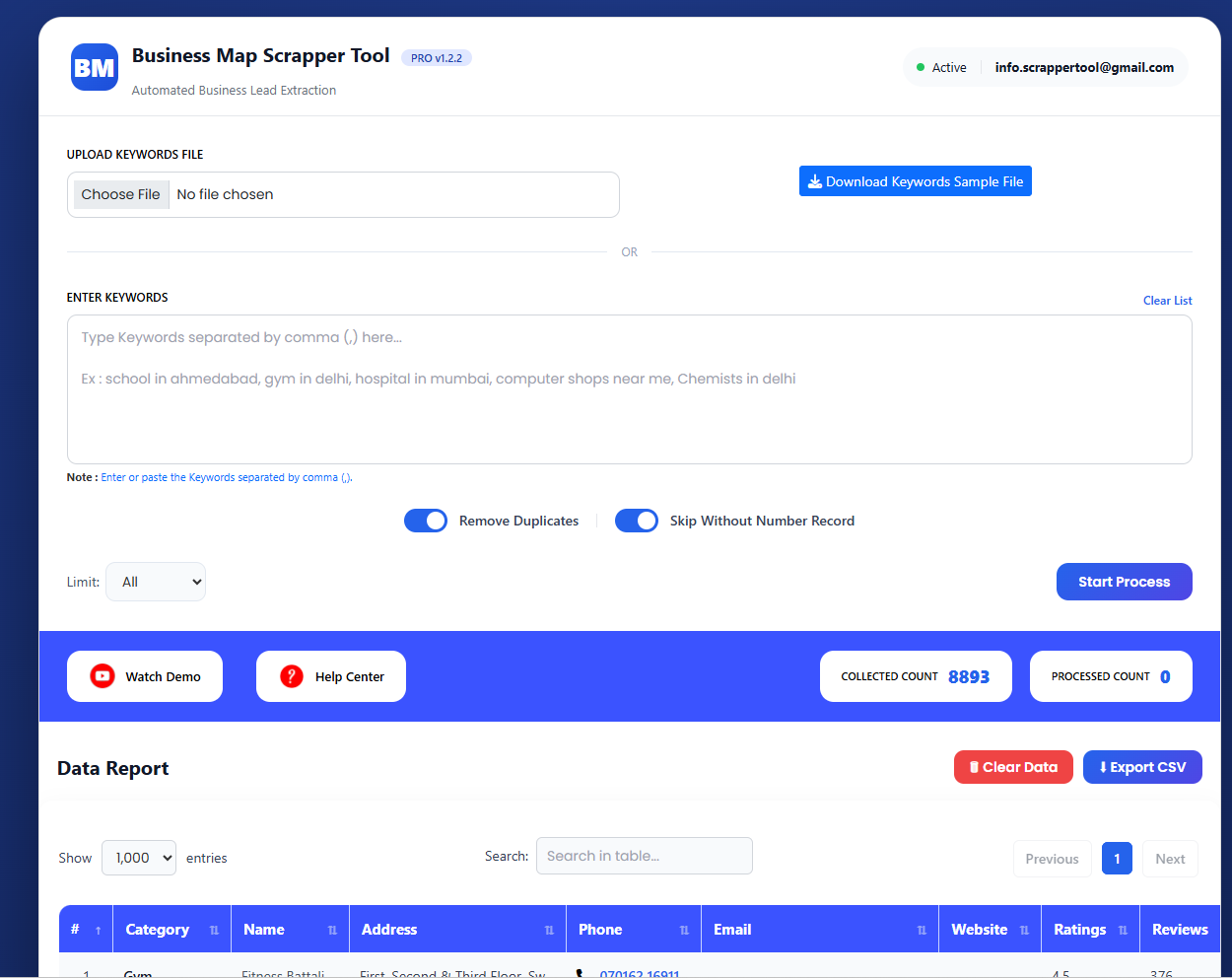
A Google Maps data scraper can automate repetitive collection work by turning business listings into structured data. Scrapper Tool provides a G-Map Data Scraper Chrome extension for collecting publicly visible business information without manually copying each listing. No custom Python scraper is required for the normal workflow.
Current functionality includes:
- map-based keyword searches
- multiple keyword input
- keyword file upload
- skip listings without phone numbers
- duplicate removal
- result limit control
- structured business data collection
- CSV export
- XLSX export
- TXT export
The current tool page confirms these functions.
Example
Suppose you need: Plumbers in Manchester
You can build searches around:
plumbers Manchester
emergency plumbers Manchester
plumbing companies Manchester
Then collect the results into a structured report instead of copying each business manually.
Manual Research vs No-Code Google Maps Scraper
| Method | Manual research | No-code scraper |
|---|---|---|
| Small list | Good | Good |
| Hundreds of listings | Slow | More suitable |
| Coding needed | No | No |
| Copy and paste | Manual | Reduced |
| Structured export | You create it | Built for export |
| Repeated searches | Time-consuming | Easier to repeat |
| Best use | Testing | Ongoing data collection |
A scraper does not replace business judgement. It reduces repetitive data collection. Qualification still matters.
Step 6 Clean Your Google Maps Lead Data
Data extraction is only the first stage. Raw results should be cleaned before they are treated as a prospect list.
Recent community discussions around Maps prospecting repeatedly highlight this problem: collecting public business data is easy compared with turning it into clean, enriched and useful leads.
Remove Duplicate Businesses
The same company may appear in several searches.
For example:dentist Ahmedabad and dental clinic Ahmedabad
could return the same business.
Check fields such as:
- business name
- phone
- address
- website domain
Scrapper Tool also provides duplicate removal during its collection workflow.
Remove Wrong Locations
Search results can sometimes include businesses outside the area you actually want. Filter the data before outreach.
Remove Irrelevant Categories
A search can return businesses that are related to the category but do not match your offer.
Example:
A search for:
interior designers
may also return:
- furniture companies
- architects
- decorators
- design schools
Keep only businesses that fit your actual campaign.
Flag Missing Information
Do not necessarily delete incomplete records immediately.
Use labels such as:
Ready
Missing Website
Missing Phone
Needs Verification
Wrong Location
Duplicate
This makes later research easier.
Step 7 Qualify the Businesses
This is one of the most important stages. A raw Google Maps record is a prospect record. A qualified lead is a prospect that matches the criteria you defined.
For example, a web design company targeting restaurants could ask:
- Is this actually a restaurant?
- Is it in our target area?
- Does it appear active?
- Does it have a website?
- If yes, is there a clear website problem we can solve?
- Is current public contact information available?
- Have we verified the information?
Only then should the company move higher on the priority list.
How to Find Businesses Without Websites
One useful Google Maps lead-generation strategy is finding companies that do not show a website on their listing.
This can be useful for:
- web designers
- web development companies
- digital agencies
- SEO consultants
The basic workflow is:
Collect relevant businesses → check Website field → identify missing websites → verify → research manually
Scrapper Tool already has a separate detailed article covering this exact use case:
How to Find Businesses Without Websites Using Google Maps
Keep this as a supporting strategy rather than making every Google Maps campaign about missing websites.
A Better Google Maps Lead Generation Workflow
Here is the complete workflow.
1 Define the target
Choose business type, location and offer.
2 Define qualification rules
Decide what makes a business relevant.
3 Search
Use category + location combinations.
4 Extract
Research manually or use a business data scraper.
5 Clean
Remove duplicates, wrong categories and wrong locations.
6 Research
Check websites and other relevant public information.
7 Qualify
Keep businesses that match your criteria.
8 Verify
Check important details again before using them.
9 Export
Save the cleaned list into CSV, XLSX, Google Sheets or your CRM workflow.
10 Use responsibly
Contact businesses only through appropriate methods and follow applicable rules.
Common Google Maps Lead Generation Mistakes
Avoid these common mistakes when building Google Maps leads:
- Using broad searches: Target a clear niche and location instead of searching for all businesses in a city.
- Treating every listing as a lead: Qualify businesses based on relevance, location, and your offer.
- Ignoring duplicates: Different searches can return the same company, so clean repeated records.
- Skipping verification: Phone numbers, websites, and business details can change over time.
- Using generic outreach: Research each prospect and keep communication relevant.
- Focusing only on emails: Business type, location, website, phone, and service fit can also help identify valuable prospects.
Google Maps Lead Generation FAQs
1. Is Google Maps good for lead generation?
Yes, Google Maps can be useful for lead generation when the target customer is defined mainly by business category and location. It is especially useful for discovering local and regional businesses.
2. How can I get leads from Google Maps?
Choose a target industry and location, search relevant businesses, collect useful public information, clean the results, qualify suitable companies, verify important details and organise the final list for your sales or research workflow.
3. Can I scrape Google Maps without coding?
Yes. A no-code Chrome extension such as the Scrapper Tool G-Map Data Scraper can collect structured public business data without requiring you to write a custom scraping script.
4. What is a Google Maps lead generator?
A Google Maps lead generator is a tool or workflow that helps turn Google Maps business listings into structured prospect data. The final lead quality still depends on targeting, cleaning, qualification and verification.
5. What information can I get from Google Maps?
Depending on the listing, public information may include business name, category, address, phone, website, ratings and review counts. Some additional fields depend on availability and the data collection process.
6. Can I get Google Maps leads into Excel?
Yes. Scrapper Tool supports CSV and XLSX export, allowing collected business data to be reviewed and organised in spreadsheet software.
7. Are Google Maps leads useful for B2B sales?
Yes, particularly when your B2B target includes local or regional businesses such as agencies, clinics, property firms, restaurants, retailers, contractors or professional service companies.
8. Are Google Maps leads ready to contact?
Not necessarily. Raw business listings should be cleaned, qualified and verified before outreach.
9. Which is better, Google Maps or a B2B lead database?
It depends on your target. Google Maps is strong when category and location matter. Traditional B2B databases can be more useful when you need specific employee roles, company attributes or decision-maker information.