

Sometimes you don’t plan it. You just need a few details from a site. Names, prices, maybe some contact info. You copy one… then another… and after a few minutes it starts to feel slow. You lose track. It happens.
Most people think there are only two options. Either keep copying everything by hand or learn coding. But there is a simpler way.
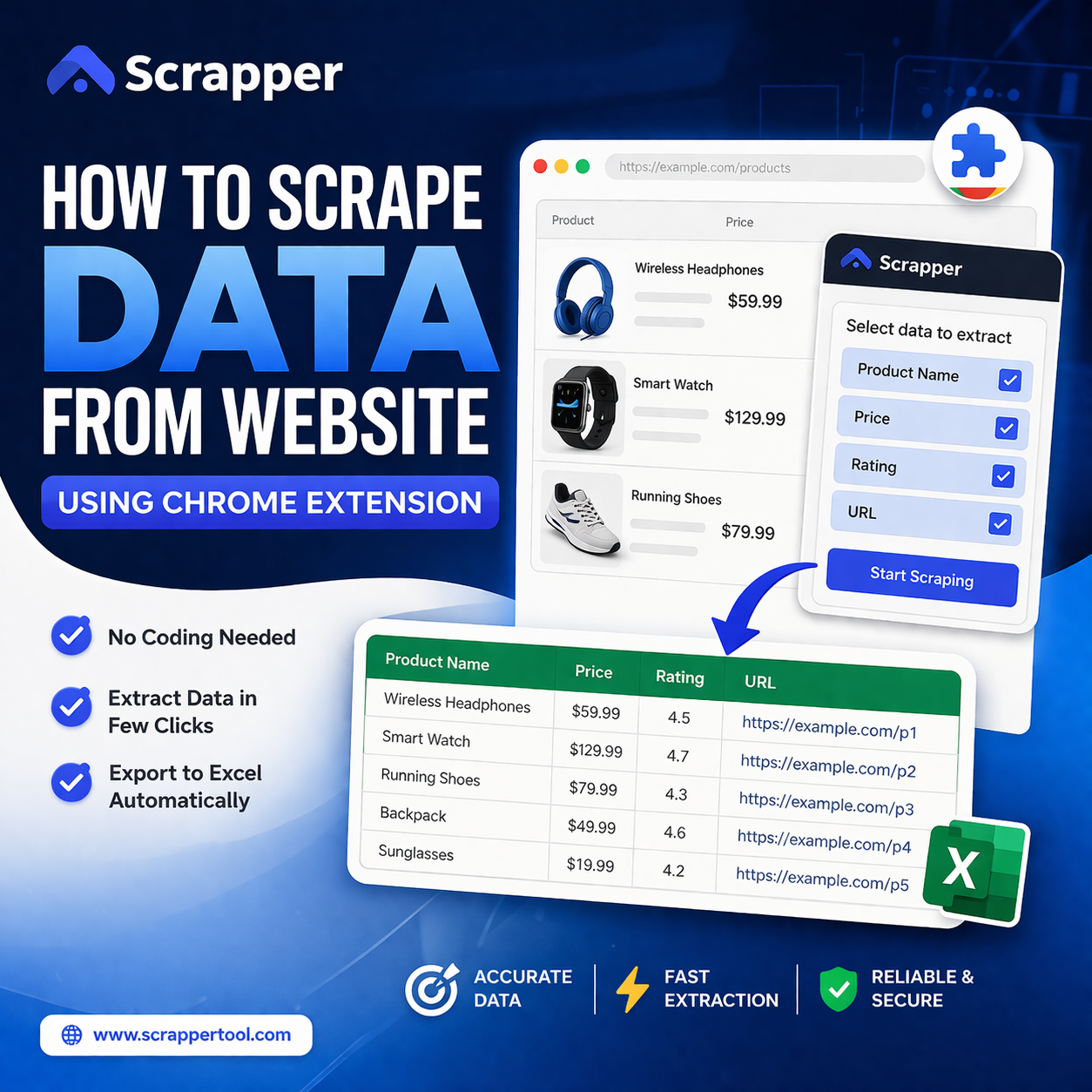
If you are trying to learn how to scrape data from website using chrome extension, the idea is actually very basic. You use a tool inside your browser that helps you collect data directly from the page. It can also help you save that data in a file like Excel, without repeating the same steps again and again.
No complex setup. Just open the page and start collecting what you need.
What Does It Mean to Scrape Data from a Website?
If you think about it, scraping is just collecting data. But instead of doing it by hand, you let a tool do it for you.
So let’s say you are looking at a page with business names, phone numbers, maybe addresses. Normally you would copy each one. Slow. Boring too.
With a data scraping chrome extension, you select what you need once. The tool picks similar data from the page. Sometimes from many pages. Then you get everything in one place.
Simple idea.
The data can be:
- names
- prices
- contact details
- product info
- locations
Nothing hidden. Just what is already visible on the website. The tool just helps you collect it faster.
Why Use a Chrome Extension Instead of Manual Copy-Paste or Coding?
Manual work feels fine at the start. But after a few pages, it becomes repetitive. You start missing entries. Some data gets skipped. It happens more than people think.
Coding is powerful, yes. But most people don’t need that level of control for everyday tasks. It’s too much effort for simple data collection.
A Chrome extension sits right in between.
You stay inside your browser. You open the page. You collect what you need. That’s it.
If you are trying to extract data from website to excel automatically using chrome extension, this is where it really helps. The tool can handle multiple items, sometimes even across pages, and give you structured data without repeating the same steps.
It works well when:
- you need data quickly
- you don’t want to deal with coding
- you want clean output in Excel
Not everything needs a complex setup. Sometimes a simple tool inside your browser does the job better.
How to Scrape Data from a Website Using a Chrome Extension Step by Step
It’s not as complicated as people think. Once you try it once, it starts to feel… kind of obvious. Like, why didn’t I do this before?
Let’s break it down slowly.
Step 1: Open the Website You Want to Scrape
Start with the page. Sounds basic, but this matters.
Open the exact page where your data is. Not the homepage. Not a random section. The actual listing or result page.
Take a second here. Look at what you need. Names? Prices? Contact info?
If you don’t decide this early, you end up collecting too much… or the wrong thing. Happens a lot.
Example You want Justdial data so go to justdial website and then search the product name that you want to scrape data.
Step 2: Install and Open a Chrome Scraper Extension
Now you need a tool. A small extension inside your browser.
Install it. Open it. Usually it sits near your address bar.
Nothing fancy here. Just make sure it’s active on the page you opened.
Sometimes people install it and forget to enable it. Then they think it’s not working. Small mistake, but common.
So for Justdial we have Justdial Scraper Tool so just click the link for chrome extension: “https://chromewebstore.google.com/detail/jd-data-scrapper-tool/gnjjmhdcbgjopfodapfecjlgedgimebj“.
Step 3: Select the Data You Want to Extract
This is where things get interesting. Just copy the url from the chrome bar and then just paste in to our chrome extension.
The tool will try to understand the pattern. It looks for similar items on the page.
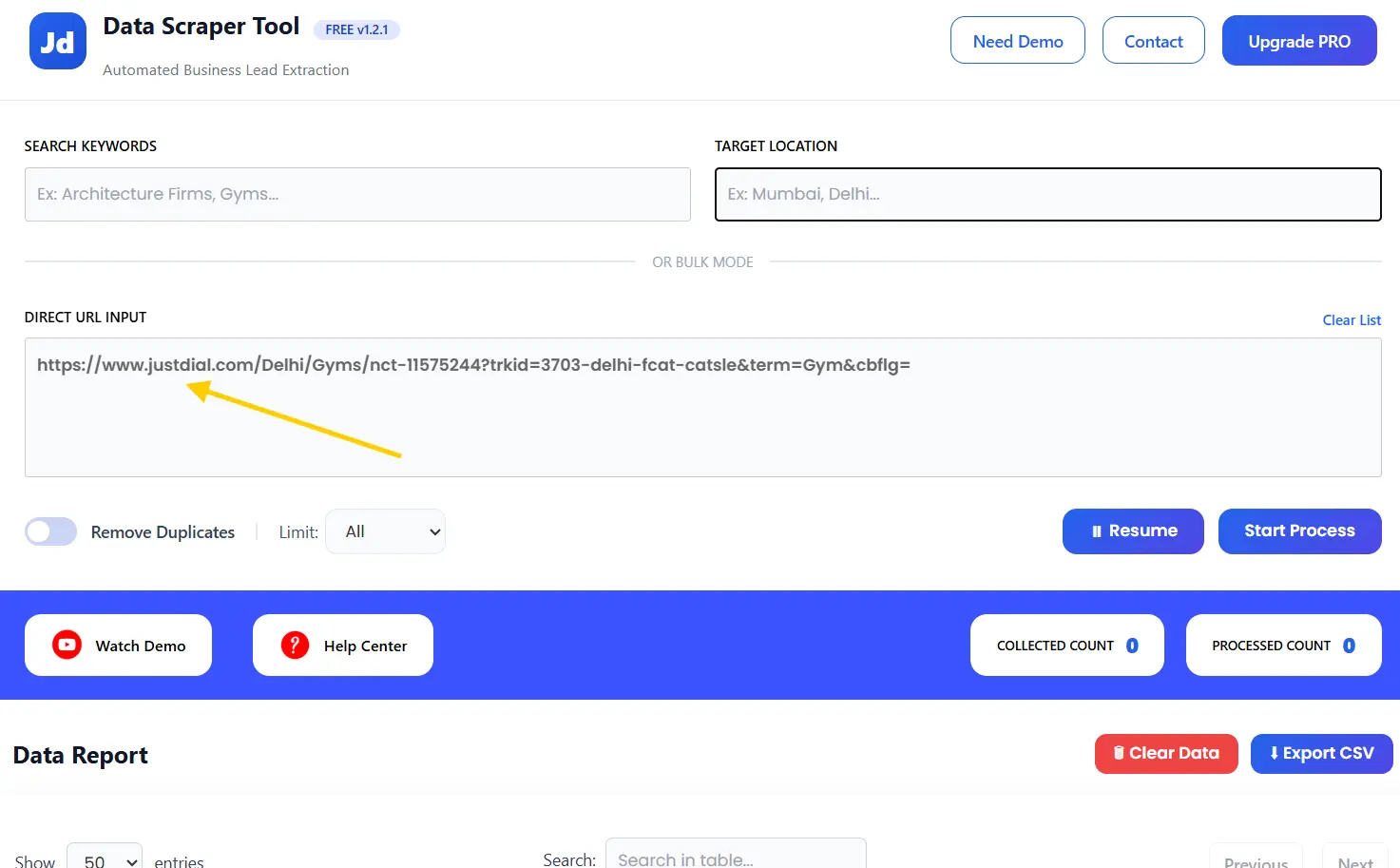
Our tool will collect things like below:
- names
- prices
- phone numbers
- links
- addresses
- product details
For full guide. just follow: How to use Justdial(JD) Scraper Tool
Step 4: Check for Multiple Pages or Scrolling
Not all data sits on one page.
Some websites have:
- pagination (next page buttons)
- endless scrolling
- duplicate data
so using our chrome extension you will resolve all the problems we have toggle button with the name of duplicate records and just toggle so your issue will resolve.
for all the pagination and other pages our tool will scrape the data one by one. and if there is a scrolling system and not pagination that you don’t have to worry about that to because that is also handle by our Scraper Tool chrome extension.
Step 5: Run the Tool and Review the Data
Now run it by just clicking the start process button. Let it collect the data. Watch what it picks.
This part is important. You just have to open the tab that you copied the data.
Check:
- Is the data clean?
- Are all rows correct?
- Anything missing?
Step 6: Export the Data
Once everything looks right, export it in excel .csv file.
Open the file. Check it again. Sometimes you may need small cleanup. That’s normal.
But overall, your work is already done.
What Types of Website Data Can You Collect With a Chrome Extension?
People often think scraping is only for one thing like leads, or products.
But it’s wider than that. Much wider. It depends on what you are looking for.
Business Listings
You can collect:
- Business Names
- Phone Numbers
- Addresses
- Categories
- Email Id
- Website Address
- and many more data it depends on website
Useful for leads or local research.
For that we have many tools like: Justdial, Google Map, IndiaMart and many more…
Read Also: Best Web Scraping Tools
Product Data
From shopping sites, you can get:
- product names
- prices
- ratings
- seller details
Good for tracking competitors or checking pricing.
For that we have Amazon Website Data Scraper, Flipkart Data Scraper, Etsy Data Scraper,
Local Business Information
Maps and listing sites have:
- location details
- reviews
- contact info
- website
Helpful if you are working on local markets.
Job Listings
Job sites show:
- job titles
- company names
- locations
- salary (sometimes)
People use this for hiring trends or research. Like Naurki Data Scraper, Indeed Website Data Scraper, Shine Data Scraper and many more.
Property and Real Estate Data
From property sites, you can collect:
- property names
- price
- location
- agent details
Useful for real estate work. Like Housing Website Data Scraper, Zillow Data Scraper, 99 acres data scraper tool
Reviews and Ratings
Some pages show feedback from users.
You can collect:
- ratings
- comments
- review counts
This helps understand what people think about a product or service.
Public Contact Details
If available, you may find:
- emails
- phone numbers
- website links
Important for outreach, but always use responsibly. Like Website Email and data extractor, SERP Scraper
Not every website gives everything. And not every tool works the same on every site.
But once you understand what to look for, it becomes easier to decide what you can collect… and what you actually need. And if you have requirement for the new website than we are build a custom web scraper also so for that you can also connect with us on whatsapp: https://wa.me/+919316308184
Best Website Types for Chrome Extension Scraping
Not every website behaves the same. That’s the first thing people realize after trying this once.
Some pages show everything in one clean list. Others hide details behind clicks, tabs, or scrolling. If you treat them the same way, results break. Or worse, you think the tool failed… but it didn’t.
So it helps to know where these tools actually work well.
Directories and Business Listing Websites
These are usually the easiest.
You’ll see a repeating pattern. Same layout. Same type of data again and again. That makes it easier to collect.
Typical data includes:
- business name
- phone number
- address
- category
Most people use this for lead collection. One small mistake here though… sometimes listings look similar but contain different fields. Always check one or two rows before collecting everything.
When a Ready-Made Chrome Extension Works Well
There are situations where things just work smoothly.
If a website:
- has a clear structure
- repeats the same layout
- shows data without extra steps
Then a ready-made tool usually handles it without issues.
This works well for:
- daily lead collection
- simple research tasks
- repeated workflows
For example, collecting listings from the same type of website every day. Once set up, it becomes routine.
When You May Need a Custom Scraper Instead
Then there are cases where things stop working the way you expect.
You open the page… but data loads after clicking. Or appears only when scrolling. Or the layout keeps changing.
This is where standard tools struggle.
You may need a custom approach when:
- the website does not follow a fixed structure
- data appears after user actions
- you need very specific fields
- you are working at a larger scale
Trying to force a simple tool in these cases usually leads to broken or incomplete results.
How to Get Better Results From a Chrome Scraper
There is no trick. Just small habits. Start with one page. Check what you get.
Don’t collect everything at once. Pick only what matters.
Always review your data before exporting. Fix early, not later.
If the website has multiple pages, go step by step. Rushing usually leads to incomplete data.
And if something feels off… stop and check. Most mistakes come from ignoring small signs.
How Scrapper Tool Fits Into This Process
At some point, you don’t want to figure everything out again and again.
Different websites need different approaches. Some are simple. Some are not.
That’s why having multiple tools helps.
Some tools work better for directories. Some for marketplaces. Some for maps. You don’t have to depend on one setup for everything.
And when the website doesn’t match any standard pattern, a custom solution becomes the better option.
So instead of adjusting your work every time, you choose a method that already fits the task.
Is It Legal to Scrape Data From a Website?
This depends on what you are collecting and how you use it. In general, focus on data that is publicly visible. Information that anyone can access without logging in or bypassing restrictions.
Also, websites may have their own rules. It’s a good idea to check them before collecting large amounts of data.
If you stay careful and use data responsibly, most common use cases remain safe.
Conclusion
There isn’t one fixed way to do this. Some websites are simple. Others take more effort. Some work perfectly with basic tools. Others need something more tailored. What matters is understanding the situation before starting. Once you know what kind of data you need and how the website behaves, the rest becomes much easier and faster.
FAQs
1. What is the easiest way to scrape data from a website?
Using a browser-based tool is usually the simplest way. It avoids manual work and does not require coding.
2. Can I scrape website data without coding?
Yes, you can use our all the tools you didn’t require the coding and you can start a free trail.
3. What kind of data can I collect?
You can collect listings, product details, prices, locations, and other visible information depending on the page.
4. Can I collect data from multiple pages?
Yes, but it depends on how the website loads data. Some require extra steps.
5. When should I use a custom scraper?
When the website is complex or does not follow a fixed structure.
6. Can I export the data to Excel?
Yes. Our Scrapper Tool will allow export in Excel or CSV format.
7. Is scraping website data allowed?
We just scrape public website data so all the websites allow to scrape.
